Configure AI Agents
In order to start discovering the Microsoft agents and Entra apps that can access your Microsoft 365 data, you need to first set up AI Agents in Syskit Point. During the setup, you connect a service account and grant Syskit Point the permissions it needs to read the agents across your tenant. This helps you keep track of the agents and Entra apps in one place through the Agents Inventory and Apps Inventory reports.
In this article, you can find details on:
AI Agents in Syskit Point is currently in Early Access and free to use while the feature is in active development. Feature behavior and scope may change as new capabilities are released.
Prerequisites
To set up and configure AI Agents:
- You need the Global Administrator role.
- You need a service account with a Power Platform Administrator role assigned.
- Syskit Point signs in with this account to read the agents across your tenant.
AI Agents in Settings
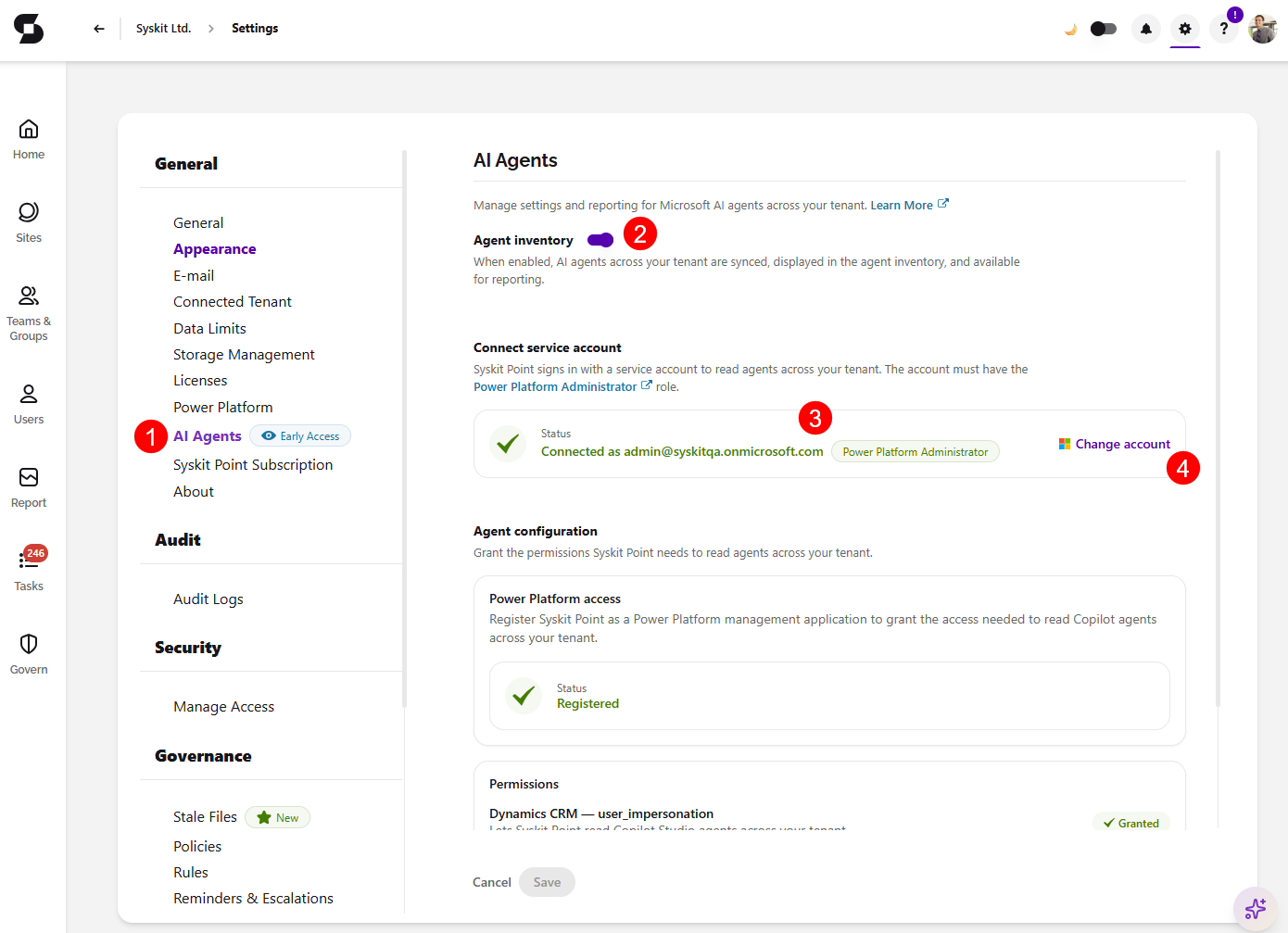
To configure AI Agents, go to the AI Agents section (1) of Settings, under General.
- Turn on the toggle for Agent inventory (2)
- When enabled, AI agents across your tenant are synced, displayed in the agent inventory, and available for reporting.
The rest of the AI Agents settings consists of two parts: connecting a service account and granting the agent configuration permissions.
The service account and Power Platform permissions are only required to discover Copilot Studio and Agent Builder agents. SharePoint agents and Entra apps are synced by default and don't require any additional setup.
Connect the Service Account
Syskit Point uses your service account to sign in and read the agents across your tenant. The account must have the Power Platform Administrator role.
- Once connected, the Status shows the connected account with a green checkmark next to it and confirms the Power Platform Administrator (3) role.
- Clicking Change account (4) takes you to the Connected Tenant section of Settings, where you can change your connected service account.
Grant the Agent Configuration Permissions
Under Agent configuration, grant the permissions Syskit Point needs to read the agents across your tenant.
- Under Power Platform access, register Syskit Point as a Power Platform management application to grant the access needed to read Copilot agents across your tenant.
- Once registered, the Status shows Registered with a green checkmark next to it.
- Under Permissions, grant the permissions listed below. Each permission shows as Granted with a green checkmark once approved:
- Dynamics CRM — user_impersonation lets Syskit Point read Copilot Studio agents across your tenant.
- Power Platform — ResourceQuery.Resources.Read lets Syskit Point query Agent Builder agents across your tenant.
- Power Platform — CopilotStudio.MinimalBot.ReadWrite lets Syskit Point read and write minimal bot resources for Copilot Studio agents across your tenant.
- It is also used to load Agent Builder agent components, such as knowledge sources.
- Power Platform — CopilotStudio.AdminActions.Invoke lets you block, unblock, reassign, and delete Copilot Studio and Agent Builder agents in Syskit Point.
- Click Save to store your preferences.
Once the service account is connected and the permissions are granted, the first AI Agents data sync starts. When completed, the summary data shows on the AI Agents dashboard tile. From there, you can drill to open the Agents Inventory and Apps Inventory reports for a detailed overview of the agents and Entra apps in your tenant.