Policy Impact Report
The Policy Impact report gives you a quick overview of everything a single policy currently affects in your tenant:
- The workspaces where the policy is applied
- The reviewers responsible for validating those workspaces, for policies with task delegation enabled
You can use this report to check a policy's reach before making changes or to find workspaces that might not have a reviewer assigned.
Access the Policy Impact Report
The Policy Impact report can be accessed from two places:
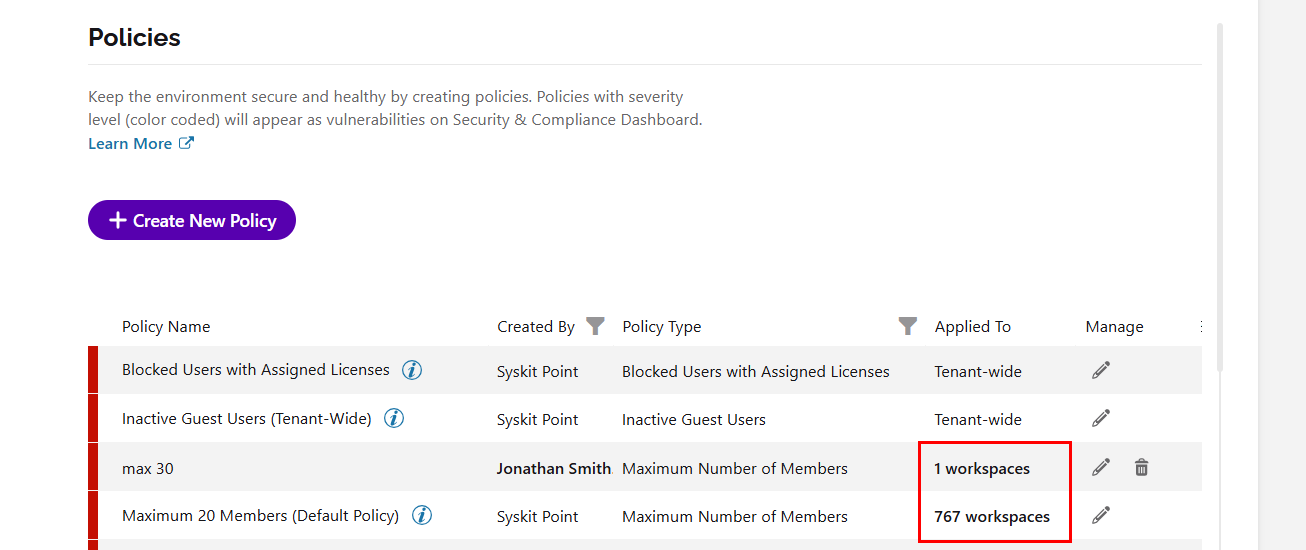
- From the Policies settings screen, go to Settings > Policies and click the number in the Applied To column for a policy.
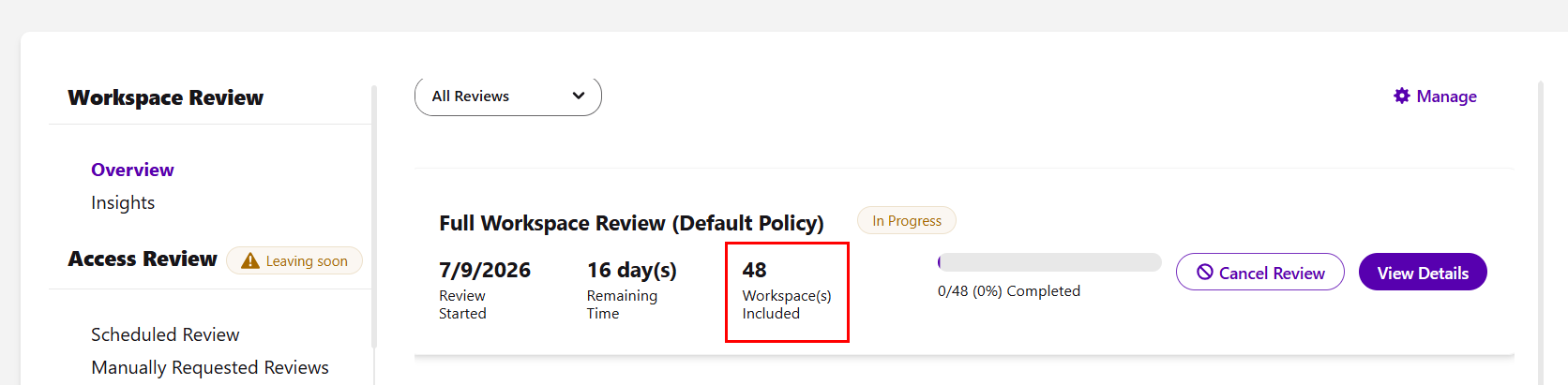
- From the Workspace Review overview, go to Govern > Workspace Review and click the Workspaces included number for a Workspace Review policy.
Please note:
- The Policy Impact report is not available for tenant-wide policies, for example, the default Inactive Guest Users policy. For these policies, the number in the Applied To column is not clickable.
- Clicking the Applied To number for an Access Review policy opens the existing Manage Reviewers screen instead of the Policy Impact report.
If the policy has no workspaces despite being applied by using Rules, the report is not shown. Once you click on the 0 workspaces, a short message is displayed with two options:
- Apply Automatically with Rules; opens the Rules screen, where you can review or edit rules.
- Manually Apply Policies; opens the Manage Policies screen, where you can apply the policy to workspaces yourself.
For more details on both options, take a look at the Apply Policies article.
Report Data
The Policy Impact report opens on the Workspaces view by default. For policies with task delegation enabled, you can use the Workspaces/Reviewers toggle at the top of the report to switch between:
- Workspaces; shows every workspace where the policy is currently applied.
- Reviewers; shows every reviewer responsible for validating the workspaces shown in the Workspaces view.
Workspaces View
You can filter the Workspace view by:
- All; shows the total number of workspaces where the policy is applied
- Workspace type filters (Microsoft Teams, Microsoft 365 Groups, SharePoint sites, etc.); each tile shows the amount for that type of workspace
- Click a tile to display only workspaces of that type
- Without Reviewers; marked with a warning icon
- Click this tile to display only the workspaces that have no active reviewer assigned for this policy
The following information is available on the report:
- Name of the workspace
- URL of the workspace
- Applied shows whether the policy was applied to the workspace by a Rule or Manually
- Active Reviewers shows the number of reviewers responsible for validating the workspace
- This column is not displayed for policies without task delegation
- E-mail of the workspace
Selecting any workspace provides the action to Exclude from Policy.
- Completing this action removes the policy from the selected workspaces.
- This action is only available when the policy was manually applied to the workspace.
If a workspace has no active reviewers, you can also perform the Change Owners or Change Admins actions. You can use these actions to assign an owner or admin to the workspace so that the policy has someone to delegate tasks to.
The report can be exported as a PDF, XLSX, or CSV file.
Reviewers View
Each row in the Reviewers view represents a user who is responsible for at least one workspace visible in the Workspaces view.
You can filter the Reviewers view by:
- All; the total number of reviewers for the policy
- Governance Excluded Users; shown only when the policy has excluded reviewers
- Click this tile to display users who are excluded from governance
- Excluded users are shown for reference, and no actions can be performed on them from this report
The following information is available on the Reviewers view:
- Name of the user
- E-mail of the user
- Department the user belongs to
- Assigned Workspaces shows the number of workspaces they are a reviewer for
You can export the report as a PDF, XLSX, or CSV file.
Please note!
For policies without task delegation, such as Access Requests, reviewers are not tracked. In this case, the Workspaces/Reviewers toggle is hidden, and only the Workspaces view is available.