Migrate from Access Review to Workspace Review
Please note: Access Review will be retired in January 2027. To continue reviewing your workspaces without interruption, we recommend moving to Workspace Review before then.
Workspace Review is a completely new feature in Syskit Point, and it is not connected to Access Review in any way. This means that both features can be used at the same time.
This makes the transition simple: you can set up Workspace Review first and turn off Access Review only when you're ready.
Here's a quick overview of what the migration from Access Review to Workspace Review looks like:
- Test Workspace Review
- As with Access Review, we recommend testing Workspace Review on a small number of workspaces first
- Configure Workspace Review e-mails
- Customize the e-mails sent to reviewers, as described in the Customize E-mails article
- Create Workspace Review policies and apply them to workspaces
- Replicate your current Access Review configuration, as described in the Create Workspace Review Policies and Apply Workspace Review Policies sections
- Turn off Access Review
- Remove Access Review policies from your workspaces and delete them, as described in the Delete Access Review Policies section
In the sections below, you can find detailed instructions on how to replicate your current Access Review configuration in Workspace Review.
Access Review Migration Explained
- Watch this video to learn how to migrate from Access Review to Workspace Review.
Create Workspace Review Policies
First, create Workspace Review policies and configure them depending on your needs. When creating a policy, you can define:
- What to review
- How often to review
- Who performs the review for each workspace type
Use your current Access Review policies as a starting point. Check their settings and create Workspace Review policies that match them.
For a detailed explanation of how to create Workspace Review policies, take a look at the Configure Workspace Review article.
Apply Workspace Review Policies
Now that your Workspace Review policies are created, the next step is to apply them to the workspaces you want to review.
How you apply Workspace Review policies depends on how you applied your Access Review policies:
If You Applied Access Review Policies with Rules
To replace Access Review policies in your rules, take the following steps:
- Navigate to Settings > Governance > Rules
- Open the Edit Rule dialog for each rule that applies an Access Review policy
- In the Apply Policies step of the dialog, replace any Access Review policy with the corresponding Workspace Review policy and click Save
If You Applied Access Review Policies Manually
To apply Workspace Review policies to the same workspaces, take the following steps:
- Navigate to Settings > Governance > Policies and click the Manually Apply Policies button
- This opens the Manage Policies screen, where you can see a list of all the workspaces in your environment with policies assigned to them
- Click the Access Review tile at the top of the screen
- The report now only displays workspaces with an Access Review policy applied
- Filter the Policies Applied column and select one of your Access Review policies
- Select all workspaces in the grid
- Click the arrow next to the Manage Policies button, located on the right side of the screen, and select Apply Policy
- In the dialog that opens, select Workspace Review from the first drop-down menu, select the policy from the second drop-down menu, and click Save
- Repeat the steps above, starting from filtering the Policies Applied column, for each Access Review policy
Once the Workspace Review policies are applied, remove the Access Review policies from your workspaces by taking the following steps:
- Click the Access Review tile at the top of the screen and select all workspaces in the grid
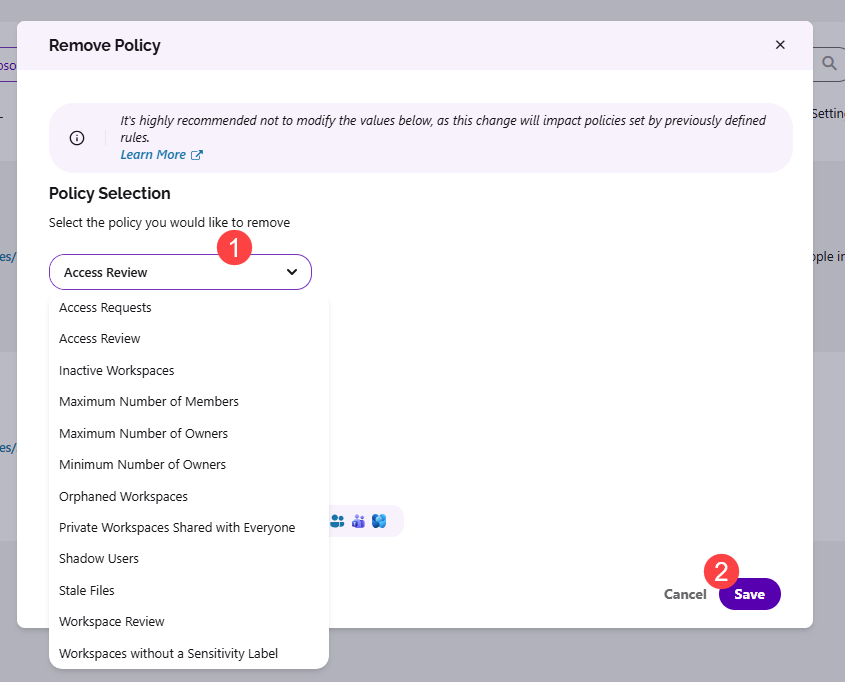
- Click the arrow next to the Manage Policies button, located on the right side of the screen, and select Remove Policy
- In the Remove Policy dialog, select Access Review (1) from the drop-down menu and click Save (2)
For more details on manually applying policies, take a look at the Apply Policies article.
Delete Access Review Policies
Before deleting Access Review policies, make sure they are not applied to any workspace:
- Navigate to Settings > Governance > Policies
- Check the Applied To column for each Access Review policy
- The value must be 0
If any Access Review policy is still applied, take the following steps:
- Click Sites on the Syskit Point homepage and filter the Policies Applied column by the Access Review policies that are still applied to workspaces
- These are the policies with an Applied To value greater than 0 from the previous step
- Open each workspace with the Access Review policy applied
- Remove the Access Review policy and apply the corresponding Workspace Review policy
Once an Access Review policy is no longer applied to any workspace, you can delete it on the Settings > Governance > Policies screen.
Access Review and Workspace Review are separate features with separate policies, so you can use both at the same time while you transition.
To check which workspaces have Access Review or Workspace Review policies applied, navigate to Settings > Governance > Policies and click the Manually Apply Policies button. Click the Access Review or Workspace Review tile to display only the workspaces with that policy type applied.