Risky Workspaces
Oversharing and unintended data exposure remain some of the biggest security risks in Microsoft 365 environments, especially in an age where AI-driven tools increase data accessibility and, consequently, the associated risks.
Syskit Point now detects workspaces considered risky based on various workspace health factors. The Risky Workspaces view, available on the Security & Compliance screen and dashboard tile, helps administrators quickly identify which workspaces pose the highest security and oversharing risks.
By evaluating key risk metrics and presenting them in a centralized report, the Risky Workspaces view enables you to understand what makes a workspace risky and take quick action directly from the dashboard.
This approach makes it easier to reduce oversharing and maintain better control over sensitive data without the need to manually review multiple individual reports.
You can access the Risky Workspaces view from the Security & Compliance checks screen by:
- Clicking the number of Risky Workspaces on the Security & Compliance Dashboard tile
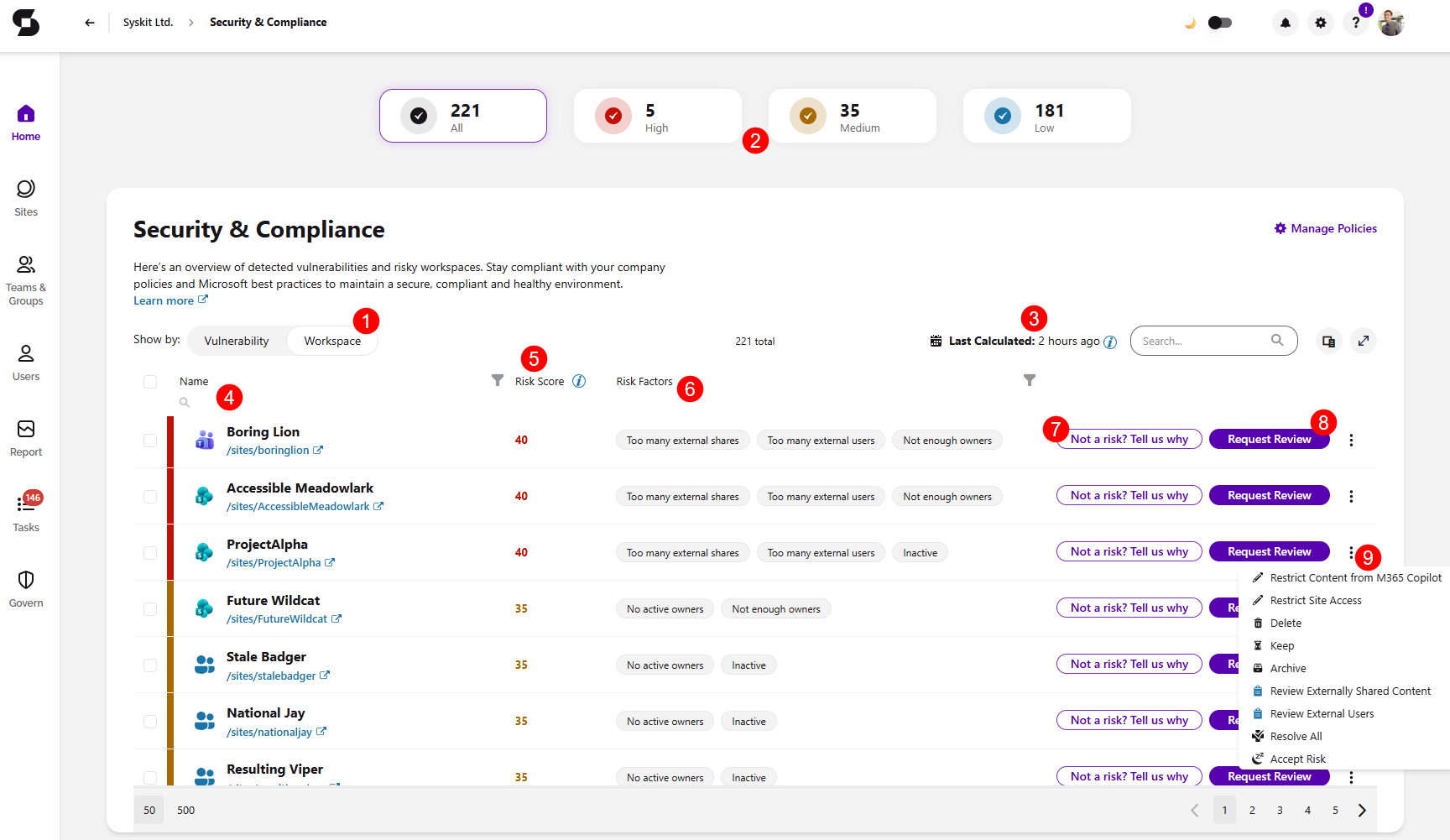
- Navigating to the Security & Compliance screen and selecting Show by: Workspace (1).
Here, you can find:
- The top filters (2) allow you to filter the report by the following:
- All risky workspaces
- High risk workspaces
- Medium risk workspaces
- Low risk workspaces
The risky workspaces report provides information on:
- Time (3) when the workspace risk factor was last calculated
- This value is recalculated automatically every 2 hours
- Name (4) of the workspace
- Risk Score (5) - shows a numerical score for the risk assessment, calculated based on various health factors; a higher score indicates a higher risk
- Risk Factors (6) - lists all potential risks detected in the workspace
- You can find the list of potential risk factors in the table below
- The Not a risk? Tell us why (7) button - this action opens a dialog modal where you can provide more details on why you think this workspace is not risky despite the detected risks
- You can also select the checkbox to be contacted by Syskit for more details
- The Request Review (8) button - this action lets you trigger a Workspace Review directly from the risky workspaces view
- If the selected workspace does not have an active workspace review policy assigned, clicking this action opens a confirmation modal that asks you to select a workspace review policy from the dropdown menu before initiating a review
- When a workspace review is requested, workspace owners are notified, sent an e-mail, and a task is created where they can review their workspace's membership, sharing and, overall compliance. For more details, take a look at this article.
- Clicking the ellipsis (9) in the right corner of each workspace can provide the following options, depending on the workspace:
- Dedicated reports with detailed information for each identified risk factor within the workspace
- Change Owners - this action lets you change the owners for the workspace directly from the risky workspaces view, if available for the workspace
- Restrict Content from M365 Copilot - this action lets you modify how content is made available for discovery by Copilot
- Restrict Site Access - this action lets you manage access restrictions applied to a site
- Lifecycle management actions: Delete, Archive, Keep
- Resolve All action - this action lets you resolve all risks immediately, without having to wait for a workspace review you requested to be completed
- Clicking the Resolve All actions opens a dedicated resolution flow that takes you through the steps where you can resolve risks detected on the workspace
- For example, if a workspace's content is shared with large 'Everyone' groups, you'll see the Everyone step where you can review and, if needed, restrict that access
- Each step focuses on a specific risk area and provides all the relevant data you need to resolve it
- Accept Risk action - this action lets you accept a specific risk factor(s) for a workspace, temporarily excluding it from the workspace's risk score
- Clicking the Accept Risk actions opens a confirmation dialog where you should:
- Accept the risk for a workspace by selecting the checkbox next to it from the available list
- Select the time frame for how long the risk should be accepted
- Once that time passes, the risk is automatically re-evaluated and will reappear if it is still present.
- If the accepted risk is resolved before the expiration date (for example, owners are added to a workspace where Not enough owners was the accepted risk), it is removed automatically on the next recalculation.
- You can also, optionally, leave a written note with the reason why you're accepting the risks
- Clicking the Accept Risk actions opens a confirmation dialog where you should:
Workspace Risk Assessment
The following table lists all possible workspace risk factors and their assigned severity levels. These risk factors are used to calculate the workspace's overall risk score, which indicates its risk level.
Risk factors marked with High severity have a greater impact on the total risk score than those with Medium or Low severity.
| Risk Factor | Severity | Description | Workspace Types |
|---|---|---|---|
| Sensitive files shared with anyone | High | This workspace contains sensitive files that have sharing links accessible to anyone, posing a high data exposure risk | SharePoint Site, M365 Group, Teams, OneDrive, Private Channels, Shared Channels |
| Sensitive files shared company-wide | High | Sensitive files in this workspace are shared with all internal users in the organization, increasing oversharing risk | SharePoint Site, M365 Group, Teams, OneDrive, Private Channels, Shared Channels |
| No active owners | High | There are no active owners assigned to this workspace, risking proper governance and accountability | SharePoint Site, M365 Group, Teams, Private Channels |
| Sensitive files in public groups | High | There are sensitive files stored in this public group with open membership, posing a significant confidentiality risk | M365 Groups and Teams |
| Items shared with everyone | High | This workspace contains files shared with everyone in the organization, posing a potential data exposure risk | SharePoint Site, M365 Group, Teams |
| Files shared with anyone | Medium | Files in this workspace are shared through anonymous links, allowing unrestricted external access | SharePoint Site, M365 Group, Teams, OneDrive, Private Channels, Shared Channels |
| Private workspace files shared company-wide | Medium | Files from this private workspace are shared broadly across the organization, increasing the risk of unwanted access | SharePoint Site, M365 Group, Teams, OneDrive, Private Channels, Shared Channels |
| Too many external users | Medium | There are too many external or guest users in this workspace, increasing the risk of data leakage | SharePoint Site, M365 Group, Teams, OneDrive, Private Channels, Shared Channels |
| Too many external shares | Medium | This workspace includes too many files or folders shared with external users, increasing exposure risk | SharePoint Site, M365 Group, Teams, OneDrive, Private Channels, Shared Channels |
| Not enough owners | Low | This workspace doesn't have enough owners, risking loss of accountability if existing one(s) become unavailable | SharePoint Site, M365 Group, Teams, Private Channels |
| Too many owners | Low | There are too many owners in this workspace, which can reduce accountability and control | SharePoint Site, M365 Group, Teams, Private Channels |
| Inactive | Low | This workspace has been inactive for over 90 days and should be reviewed to determine if it’s needed | SharePoint Site, M365 Group, Teams, OneDrive, Private Channels, Shared Channels |