Cleanup Opportunities
The Cleanup Opportunities tile on the Syskit Point Dashboard shows any permission cleanup opportunities such as redundant unique permissions from expired links, access that differs from your current sharing policies, and files with permissions that haven't been used in a long time.
The tile gives you a single place to see how many of these issues exist in your tenant and lets you take action on them directly, without having to search through reports.
The Cleanup Opportunities tile shows the state for four categories:
- Redundant Unique Permissions (1) - these are items where unique permissions match the parent so removing them simplifies your structure without changing anyone’s access.
- Leftover Anyone Links (2) - these are anyone links that now aren't aligned with your external sharing policy because your external sharing settings have since become more restrictive.
- Leftover External Users (3) - these are external users whose access is no longer in compliance with your external sharing policy because your settings became more restrictive.
- Inactive Unique Permissions (4) - these are files with unique permissions that haven’t been accessed or modified within the defined inactivity period.
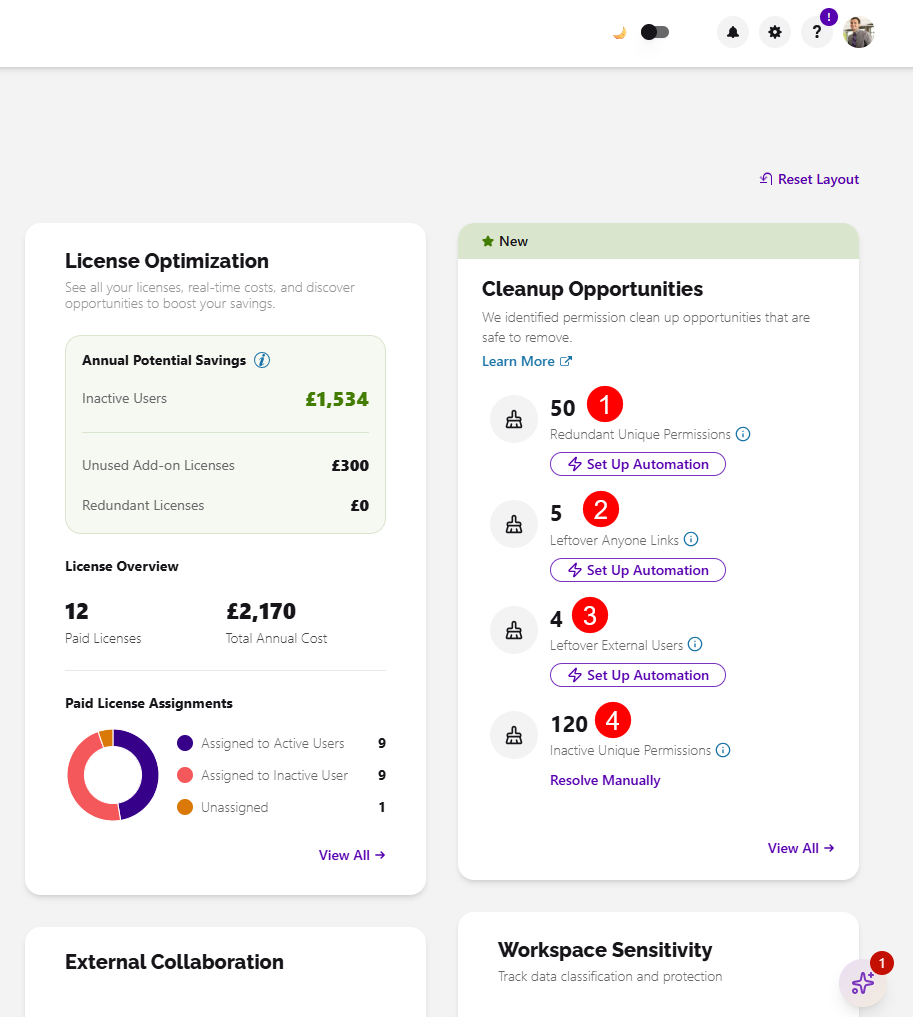
Clicking any of the counts in the tile opens the relevant report, where you can review the findings and take action.
Redundant Unique Permissions
After sharing links expire, get deleted, or after ad-hoc access is removed, unique permissions are often left behind even when they're no longer needed, making them redundant. This means that redundant unique permissions happen with items where unique permissions match those of their parent. Over time, they accumulate silently: permission reviews become harder to complete, SharePoint performance degrades on heavily affected sites, and admins lose a clear picture of who actually has access. These redundant unique permissions can be safely removed to simplify your structure without changing anyone's access.
On the dashboard tile, you'll see the number of redundant unique permissions ready to be cleaned up, click Set up Automation to start.
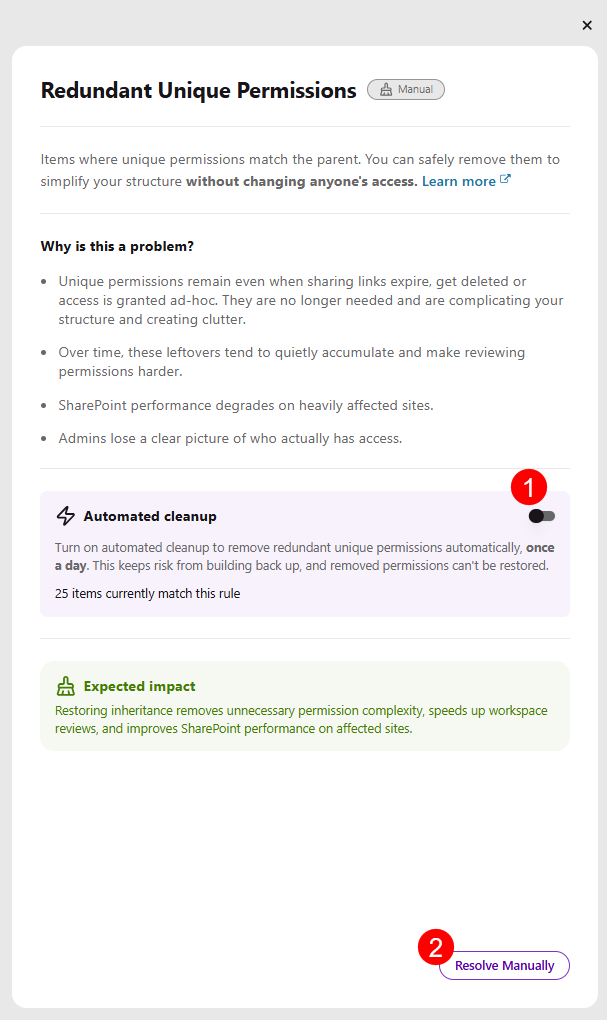
After selecting Set Up Automation, the information dialog opens, providing more details on Redundant Unique Permissions and leaving you with two options:
-
Turning on the Automated cleanup toggle (1) lets Syskit Point clean up redundant unique permissions for you automatically
- The Automated Cleanup toggle is turned off by default
- When it's turned on, redundant unique permissions are cleaned up once a day
- Every object the automation cleans up is stored in the action history log
-
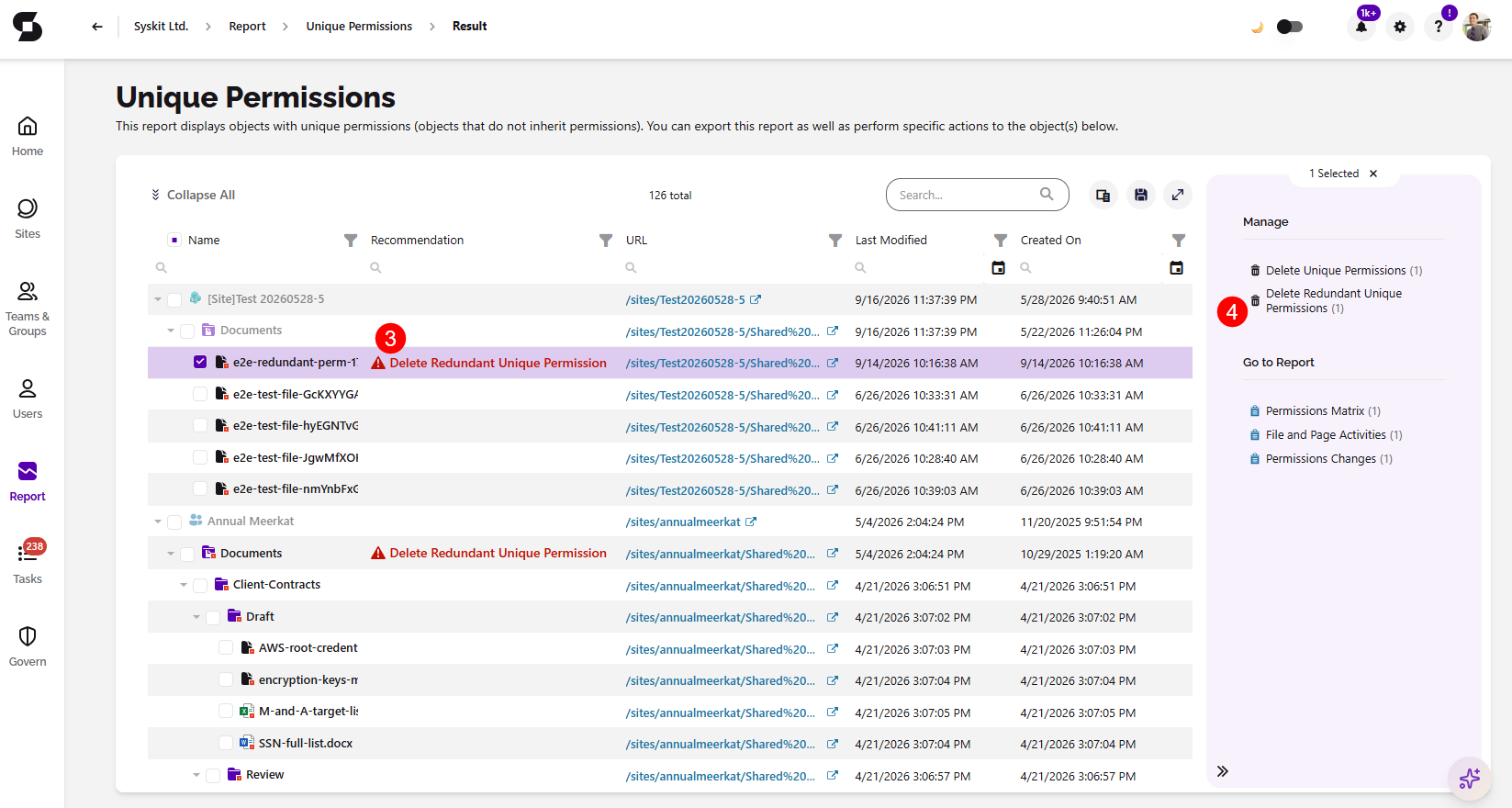
Clicking Resolve Manually (2) opens the Unique Permissions report
- After generating the report, you'll see the Remove Redundant Unique Permissions recommendation (3) next to affected objects, where applicable
- Optionally, you can use the filter next to the recommendations column to search for Redundant Unique Permissions recommendations
- Selecting that object lets you complete the Delete Redundant Unique Permissions action (4)
- After generating the report, you'll see the Remove Redundant Unique Permissions recommendation (3) next to affected objects, where applicable
-
Clicking View Cleanup Insights (3) opens the Cleanup Opportunities Insights report on the Security & Compliance section of the Govern screen
Please note: Always use the Delete Redundant Unique Permissions action, which removes only redundant unique permissions. Do not use the Delete Unique Permissions action as it also removes unique permissions from parent nodes that may still be needed.
Cleanup Redundant Unique Permissions
- Watch this 2-minute video to learn what redundant unique permissions are, why you should clean them up, and how to automate the process.
Inactive Unique Permissions
Files shared for ad hoc collaborations, one-off requests, or short-term projects often retain unique permissions long after the work is done. With no activity, no views or edits, the access just sits there unchallenged, with no signal to tell admins which permissions are still needed and which have been overlooked. Files with Inactive Unique Permissions haven't been accessed or modified in the last 180 days. Over time, inactive unique permissions accumulate and create real risk: ongoing access to files that no one is actively monitoring. By cleaning them up, you're removing that unnecessary risk exposure.
On the dashboard tile, you'll see the number of inactive unique permissions ready to be cleaned up, click Resolve Manually to start.
After selecting Resolve Manually, the information dialog opens, providing more details on Inactive Unique Permissions and leaving you with two options:
- Clicking the Request Automation button lets you send us a request for this feature to be automated, which helps us prioritize the improvements you're requesting
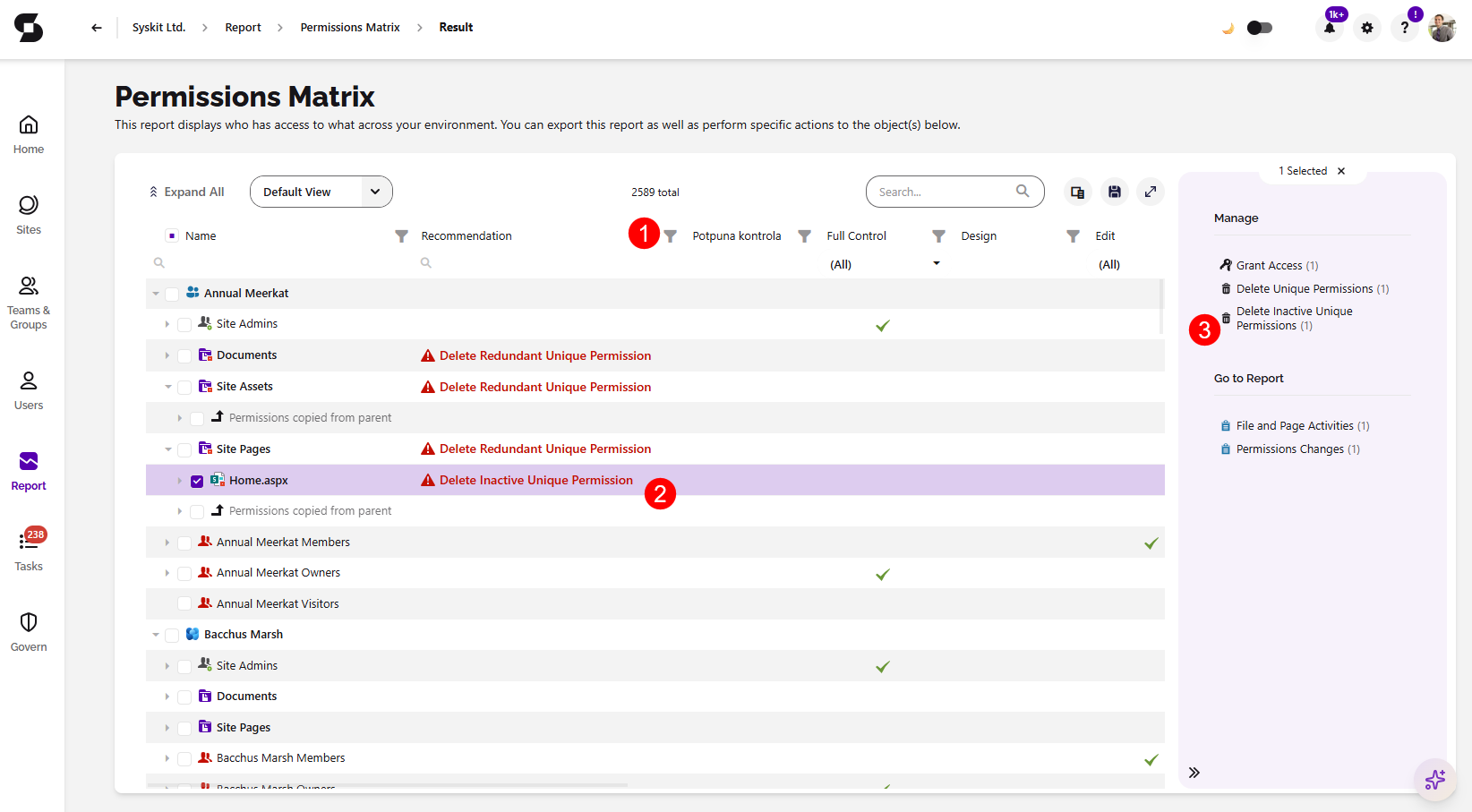
- Clicking Resolve Manually opens the Permissions Matrix report
- After generating the report, you can optionally use the filter next to the recommendations column (1) to search for the Delete Inactive Unique Permissions recommendation (2)
- Selecting that object lets you complete the Delete Inactive Unique Permissions action (3)
Please note: Always use the Delete Inactive Unique Permissions action, which removes only inactive unique permissions. Do not use the Delete Unique Permissions action as it also removes unique permissions from parent nodes that may still be needed.
Leftover Anyone Links
When external sharing settings become more restrictive, SharePoint blocks existing Anyone links, but doesn't delete them. These links were valid when created, but once your settings became more restrictive, they no longer comply with your external sharing policy and should be removed. Deleting these links permanently removes the risk. Unlike tightened settings that can be reverted, a deleted link cannot be reactivated.
On the dashboard tile, you'll see the number of leftover anyone links ready to be cleaned up, click Set up Automation to start.
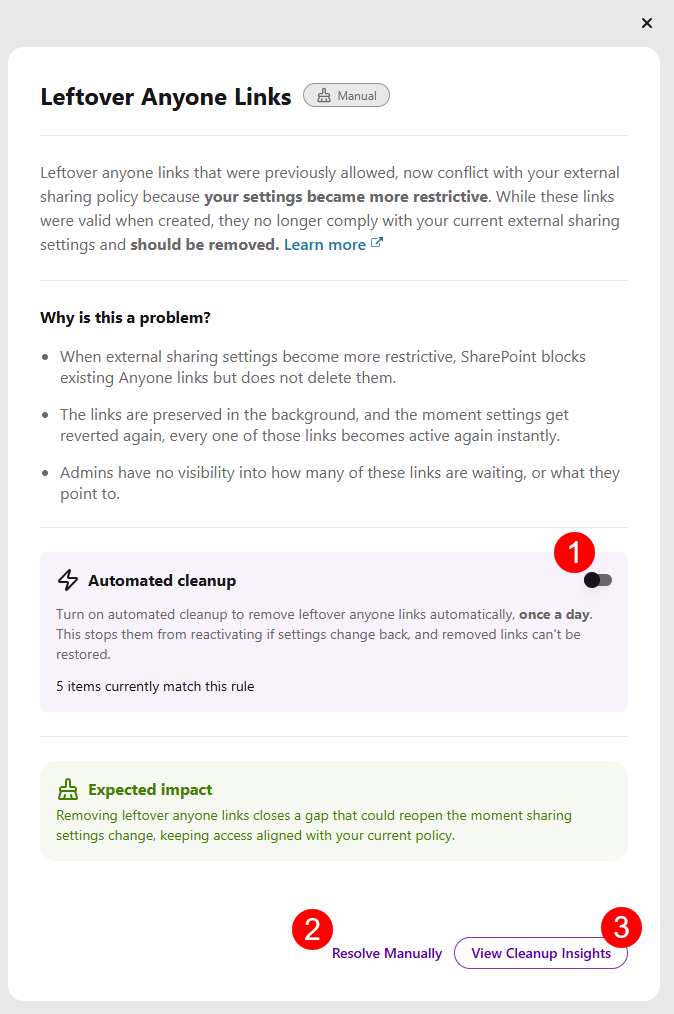
After selecting Set Up Automation, the information dialog opens, providing more details on Leftover Anyone Links and leaving you with two options:
-
Turning on the Automated cleanup toggle (1) lets Syskit Point remove leftover anyone links for you automatically
- The Automated Cleanup toggle is turned off by default
- When it's turned on, leftover anyone links are removed once a day
- Every link the automation removes is stored in the action history log
-
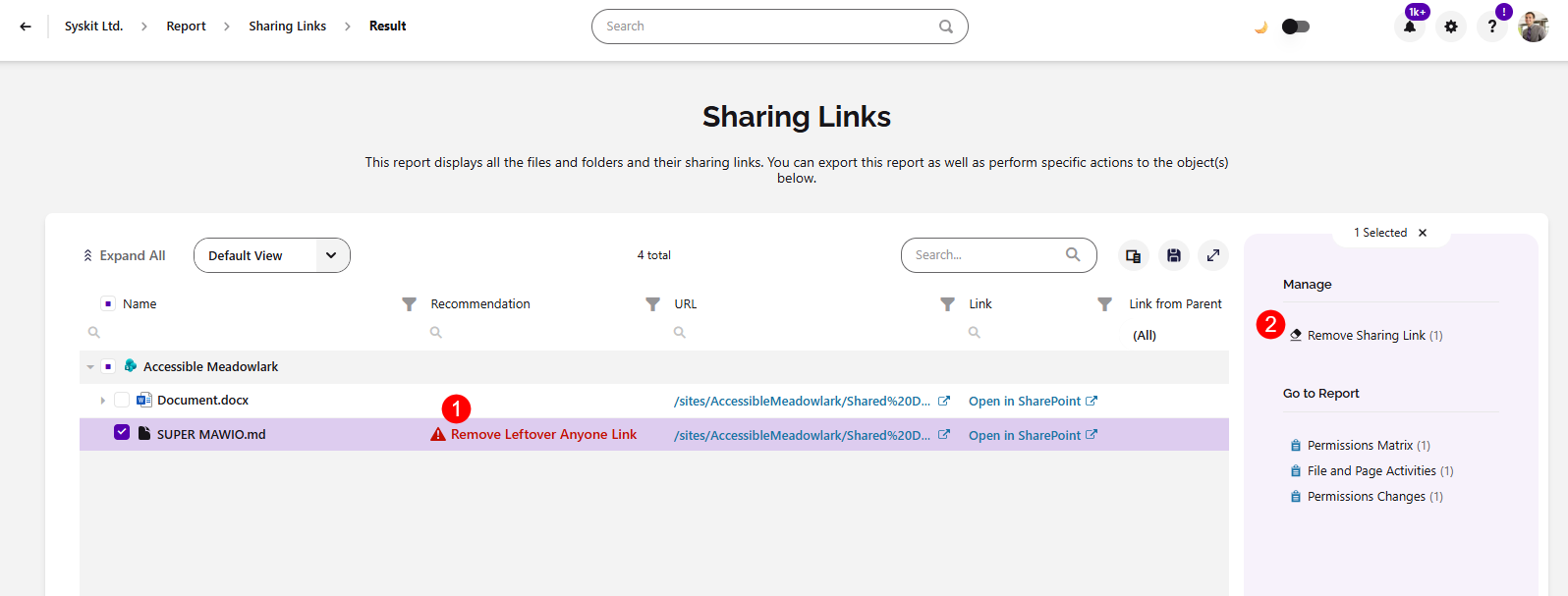
Clicking Resolve Manually (2) opens the Sharing Links report
- After clicking the report, you'll see the workspaces where there are leftover sharing links, and selecting them lets you generate the report
- Once the report is generated, you'll see the recommendation to Remove Leftover Anyone Link (3), where applicable
- Selecting the object lets you complete the Remove Sharing Link (4) action
-
Clicking View Cleanup Insights (3) opens the Cleanup Opportunities Insights report on the Security & Compliance section of the Govern screen
Leftover External Users
When external sharing settings become more restrictive, SharePoint blocks existing guest users, but doesn't remove them. These users had valid access when it was granted, but once your settings became more restrictive, they no longer comply with your external sharing settings and should be removed. Removing these external accounts eliminates outdated access and keeps your guest users list aligned with your current sharing policies.
On the dashboard tile, you'll see the number of leftover external users ready to be cleaned up, click Set up Automation to start.
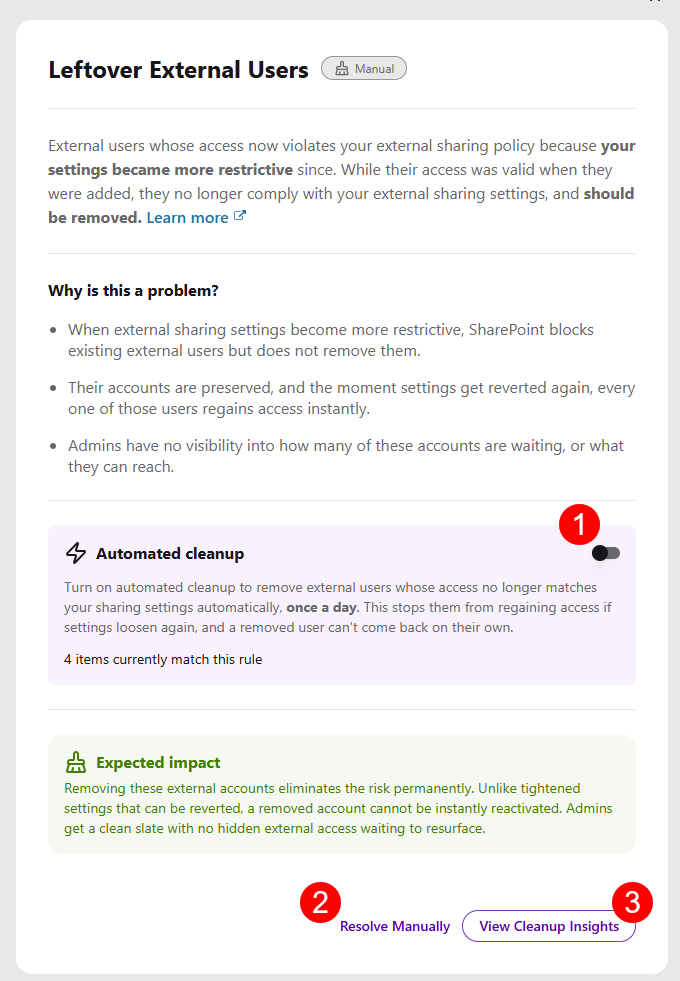
After selecting Set Up Automation, the information dialog opens, providing more details on Leftover External Users and leaving you with two options:
-
Turning on the Automated cleanup toggle (1) lets Syskit Point remove leftover external users for you automatically
- The Automated Cleanup toggle is turned off by default
- When it's turned on, leftover external users are removed once a day
- Every access the automation removes is stored in the action history log
-
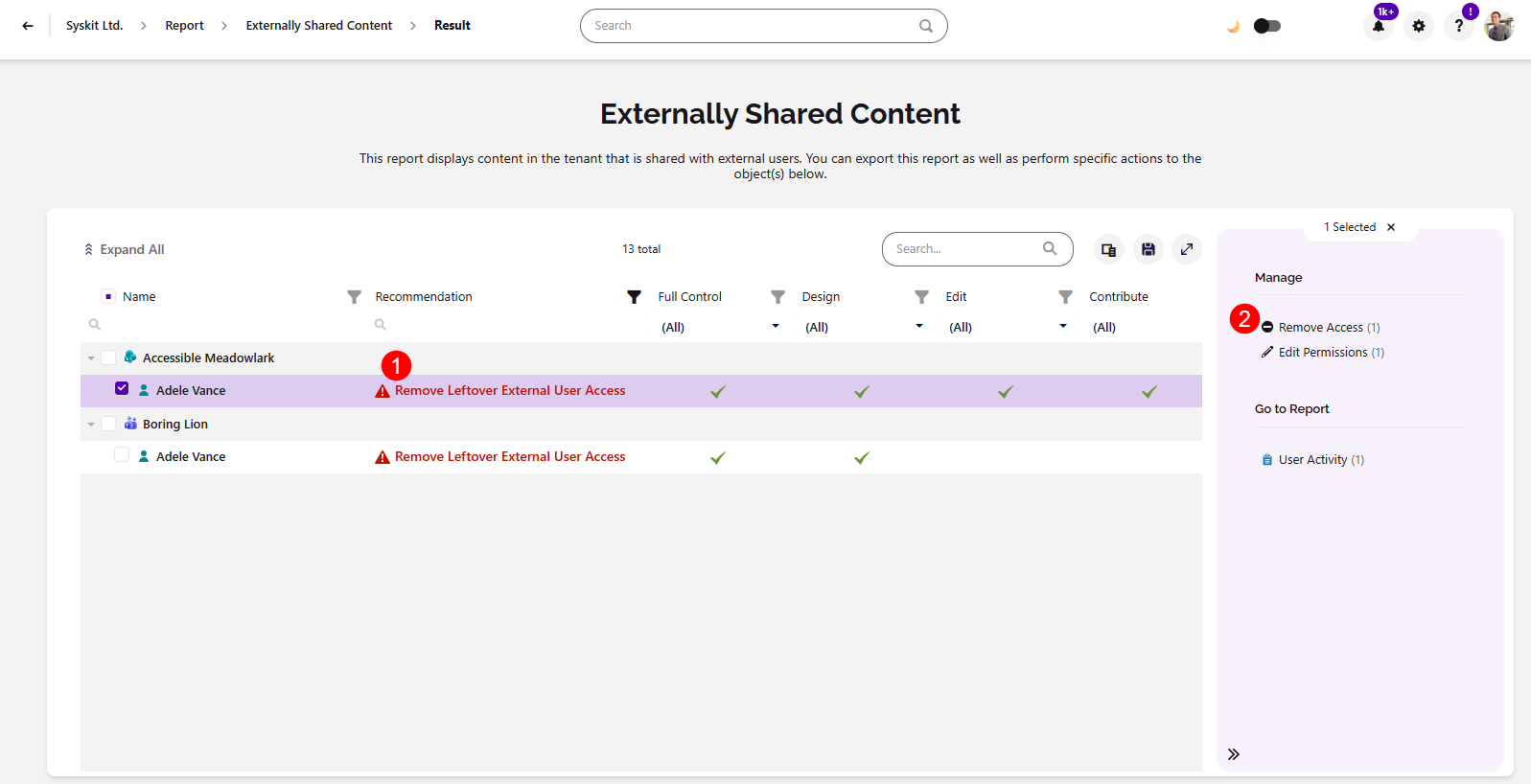
Clicking Resolve Manually (2) opens the Externally Shared Content report
- After clicking the report, you'll see the workspaces that include leftover external users, and selecting them lets you generate the report
- Once the report is generated, you'll see the recommendation to Remove Leftover External User Access (3), where applicable
- Selecting that user lets you complete the Remove Access (4) action
-
Clicking View Cleanup Insights (3) opens the Cleanup Opportunities Insights report on the Security & Compliance section of the Govern screen
Please note: Automated cleanup skips external users who have access through Microsoft 365 Groups, Teams, or security groups. Removing them could affect access beyond one site.
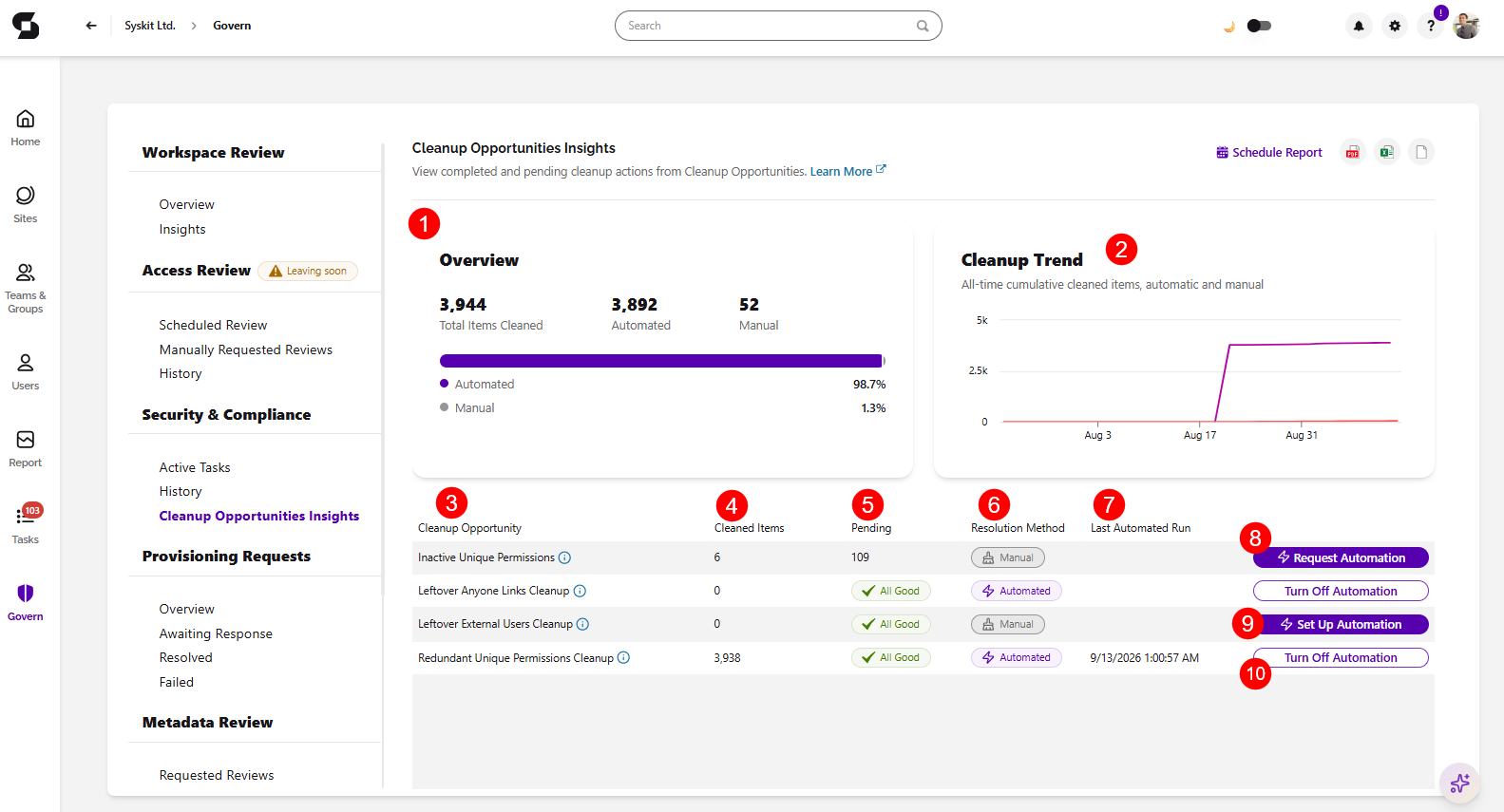
Cleanup Opportunities Insights
The Cleanup Opportunities Insights report gives you an overview of the cleanup work done across your environment. With it, you can see how much has been resolved automatically and how much still needs your attention.
You can find the Cleanup Opportunities Insights report by:
- Clicking Govern on the left side of the screen, going to the Security & Compliance section and clicking Cleanup Opportunities Insights
- Clicking View All on the Cleanup Opportunities dashboard tile opens the Cleanup Opportunities Insights report
The report provides an overview of all completed and pending cleanup actions taken from the Cleanup Opportunities tile.
The following information is available:
-
The Overview section (1), which provides the number of:
- Total Items Cleaned
- Number of items cleaned through automation, as well as the percentage
- Number of items cleaned manually, as well as the percentage
-
The Cleanup Trend section (2), which shows the amount of all-time cumulative cleaned items shown through a graph for automated items and manual items
-
The report for the current state of your Cleanup Opportunities with the following columns included:
- Cleanup Opportunity (3) - shows the name of the cleanup category
- Cleaned Items (4) - shows the number of cleaned items so far
- Pending (5) - shows the number of items still pending
- Resolution Method (6) - shows the resolution method, whether it is automated or manual
- Last Automated Run (7) - if automated, shows when the last automated cleanup happened
-
Depending on whether automation is available for the category or not, you can also see the following buttons:
- Request Automation (8) - available for cleanup opportunities that are currently without automation
- Set Up Automation (9) - available for cleanup opportunities that can already be automated
- Turn Off Automation (10) - available for cleanup opportunities that already have automation enabled