Exported Reports
When a report takes too long to generate or contains too much data, Syskit Point now offers to generate the export in the background and send it to you by e-mail when it's ready. The Exported Reports page is where you go to download those reports.
The Exported Reports screen in Syskit Point gives you a central place to access and download reports that have been generated and are ready for you.
From the Exported Reports screen, you can:
- View all reports currently available for download
- Download a report directly from the list
- See when a report has expired and is no longer available for download
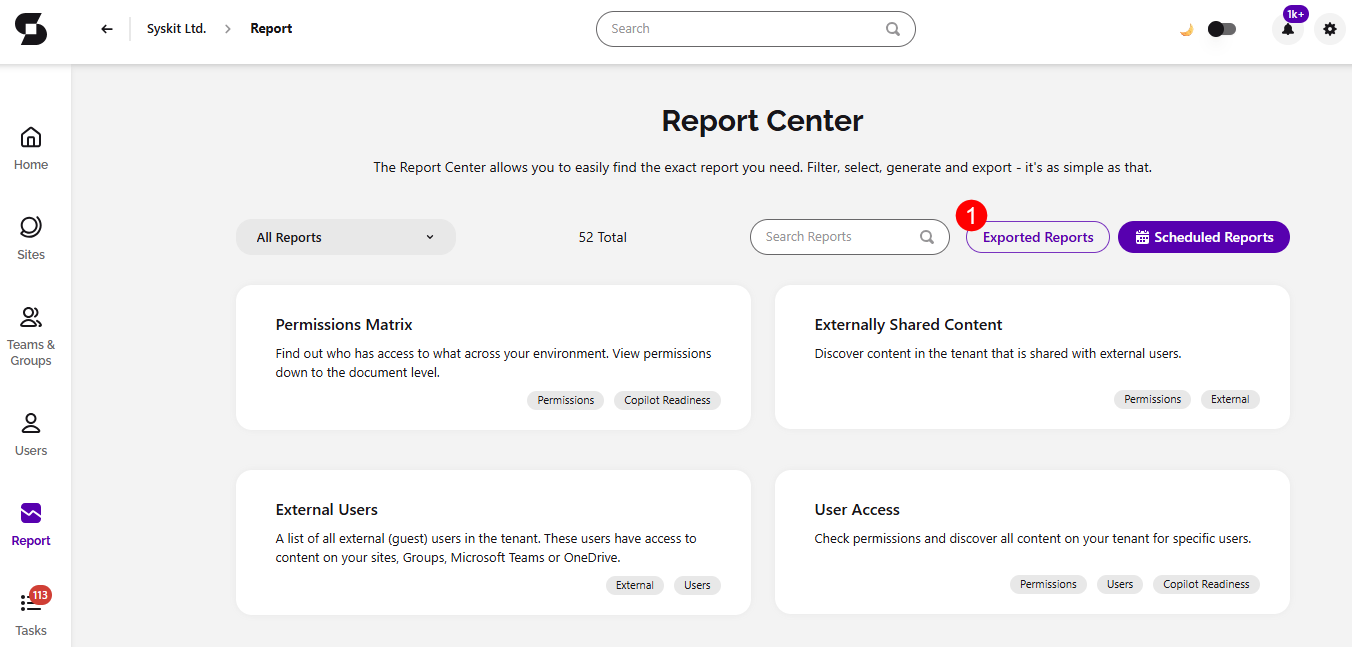
You can find it by going to the Reports screen and clicking the Exported Reports button (1), located in the right screen corner.
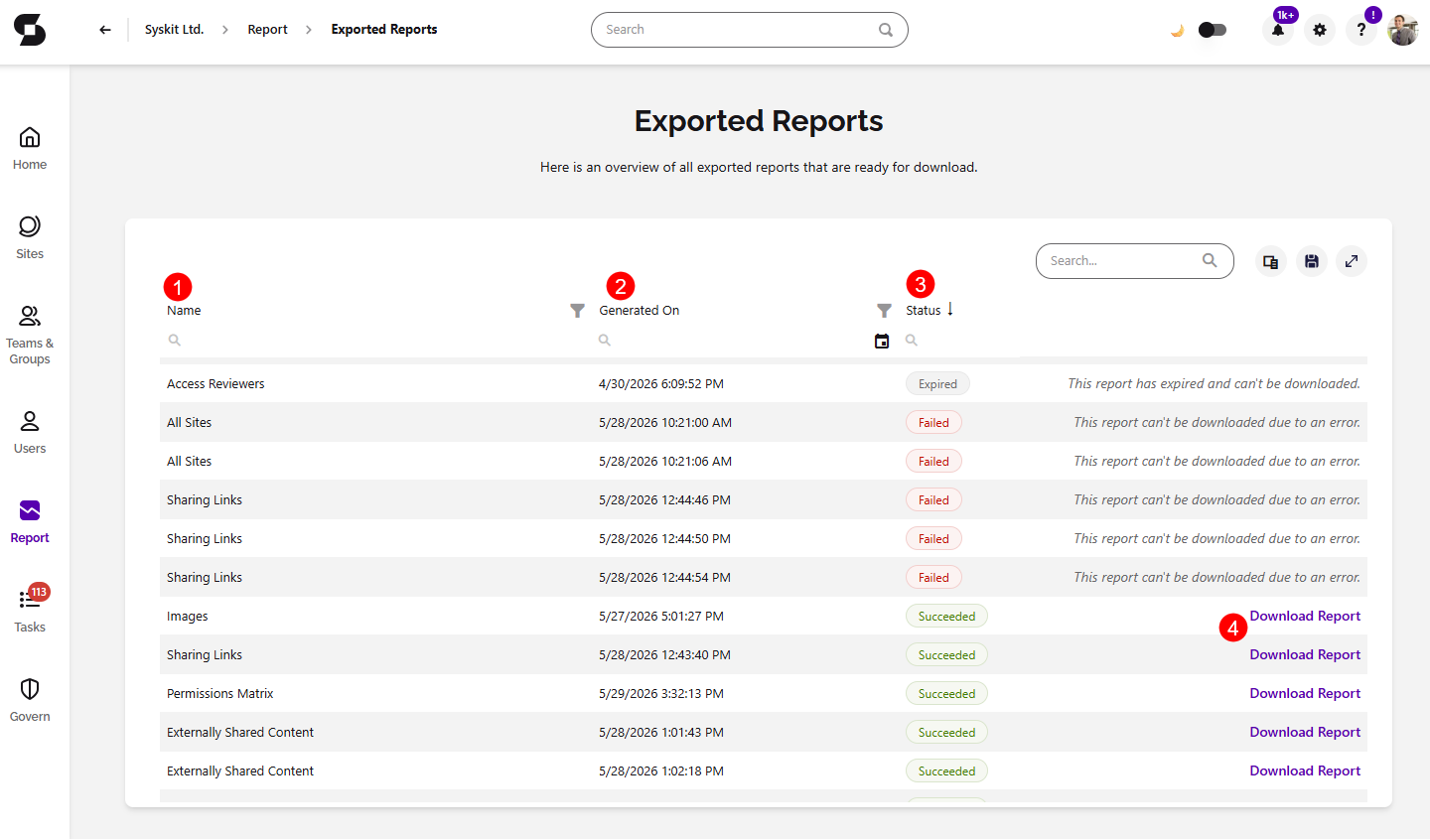
This opens the Exported Reports screen, where you can find the following:
- Name (1) shows the name of the report that was generated
- Generated On (2) shows the date and time when the report was generated
- Performed By (3) shows who the report was generated by
- Status (4) shows whether the report download Succeeded, Failed, or Expired
- When a report status states failed, instead of the Download action, the text will state that the report cannot be downloaded due to an error
- When a report status states expired, instead of the Download action, the text will state that the report has expired and cannot be downloaded
- Report Format shows whether the report was downloaded as a XLSX, CSV or PDF file
- Download button (4) lets you download all available reports.
The additional columns available in the column chooser are:
- Report Key
- Completed At
- Error Message
- Delivery Method
After receiving a report delivery e-mail and clicking the link, you are taken directly to this page, and the download starts automatically.