Workspace Review Governance: Overview
Once you've accessed the Overview screen by clicking Govern > Workspace Review > Overview, you'll find a quick look at the state of your Workspace Review.
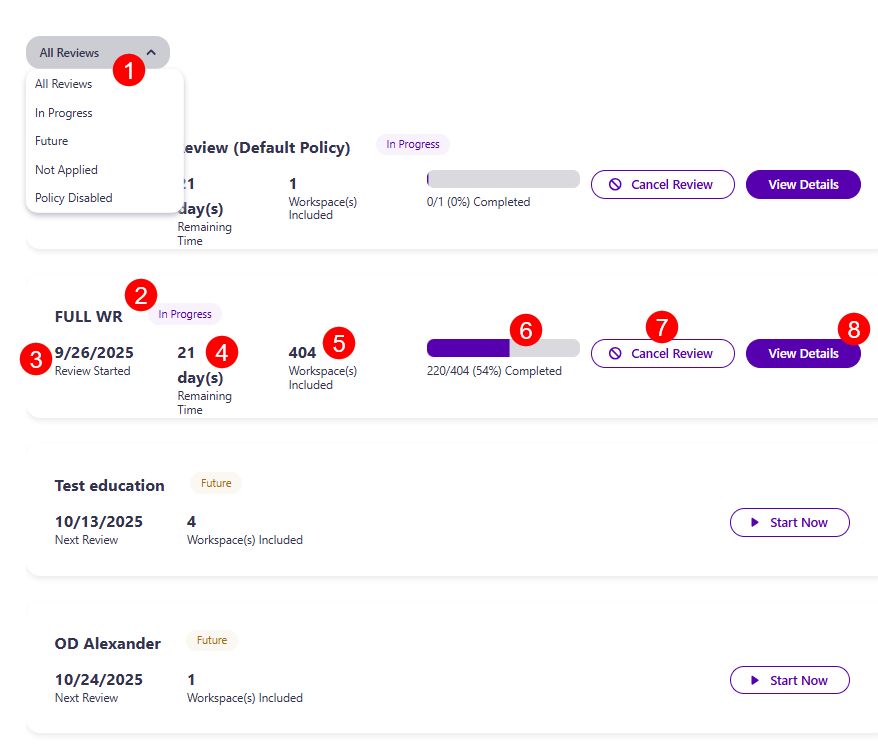
- The filter in the top left corner (1) lets you select between the view you want applied, with the following options available:
- All Reviews - shows all Workspace Review policies
- In Progress - shows reviews that are currently in progress
- Future - shows scheduled reviews that will start sometime in the future
- Not Applied - shows policies that are configured, but are not applied to any workspace
- Policy Disabled - shows Workspace Review policies that are disabled, which means tasks and emails won’t be sent
Each workspace review contains the following:
- Name (2) of the review and the current state of the review (example, requested, in progress)
- Date (3) the review was started
- Time left (4) to complete the review
- Number of workspaces (5) included in this workspace review
- Percentage of tasks (6) complete and number of workspaces where the review was completed out of the number of workspaces where it was requested
- Cancel Review button (7) - clicking this opens the confirmation dialog, where you need to confirm the cancellation
- If you cancel a Workspace Review, the following happens:
- All workspace review tasks are automatically closed with the status 'Canceled'
- No emails are sent to workspace owners
- The canceled review is visible under Govern > Insights > Show by Review
- If you cancel a Workspace Review, the following happens:
- View Details (8) - clicking this opens the review details screen for that workspace review policy
After clicking the View Details button, the Workspace Review details screen appears, where the following can be found:
-
Review Information which includes:
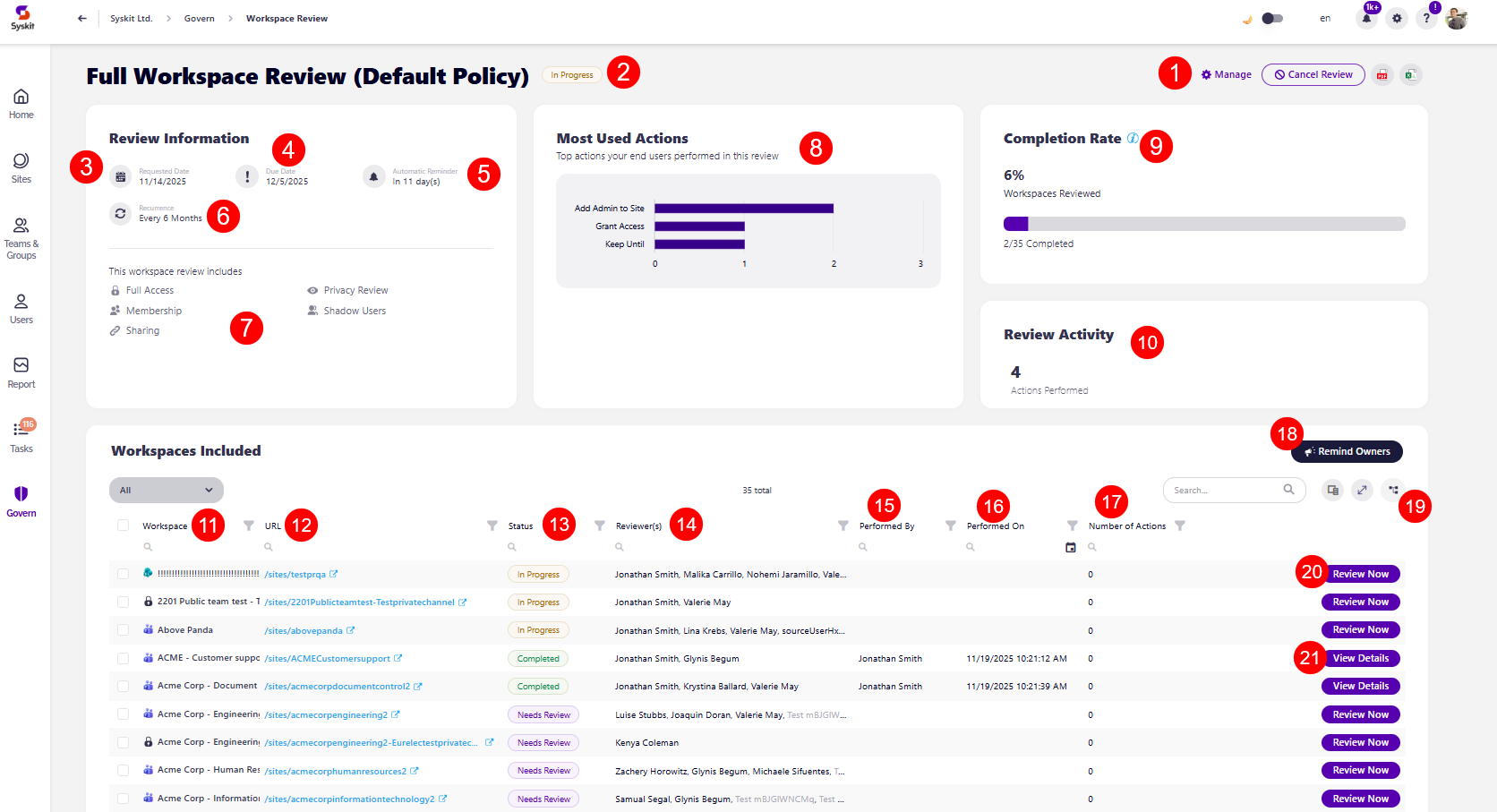
- The Manage button (1), which you can use to edit the Workspace Review Policy
- Name (2) of the review and the current status
- Date (3) the review was requested
- Due date (4) by which the review should be completed on
- Amount of days (5) when an automatic reminder is sent
- Recurrence time (6), which shows how often the workspace review is repeated
- A list of what this workspace review includes (7) out of the following options:
- Full Access
- Sensitivity Review
- Shadow Users
- Privacy Review
- Membership
- Sharing
-
Most Used Actions (8), which shows the top actions that end users performed in this review
-
Completion Rate (9), which shows the percentage of review completion as well as the number of workspaces the review was completed on out of the number of workspaces the review was requested on
-
Review Activity (10), which shows the number of actions taken during this workspace review
-
Workspaces Included, which provides a list and overview of all workspaces included in the review, with the following columns available:
- Workspace (11) - name of the workspace
- URL (12) - URL for the workspace
- Status (13) - the current status of the review for that workspace
- Reviewer(s) (14) - list of reviewers responsible for that workspace
- Performed by (15) - shows who the review was performed by
- Performed on (16) - shows the date when the review was performed
- Number of Actions (17) - the number of actions taken on the workspace as part of the workspace review
- Remind Owners action (18) - in the top right corner, clicking this sends an email reminder to reviewers for the workspaces where the Workspace Review was not yet completed
- Review Now action (19) - lets you complete the review on that workspace by yourself
For more details on your Workspace Review, you can proceed to the Insights section of Governance, or check out the Completion Summary for information on what you can expect when your workspace review is completed.