Workspace Review Membership
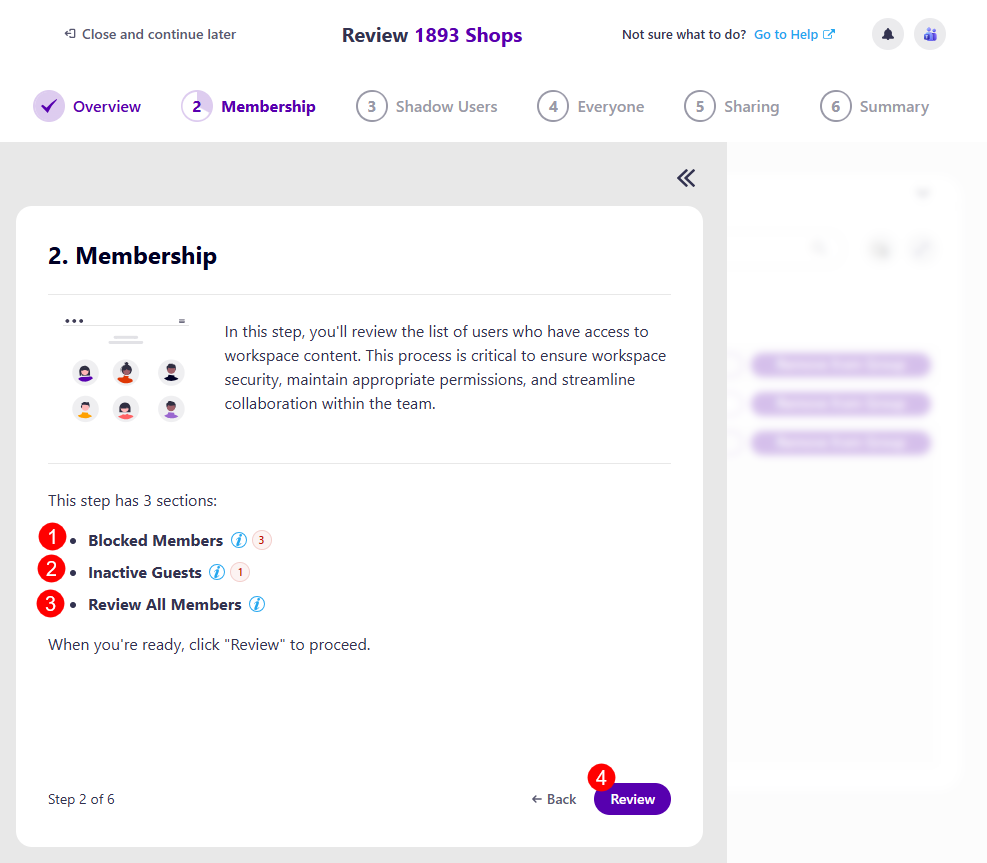
The first screen on the Membership step is the task overview. Here, you can find information on what is expected of you for this step:
-
You will be asked to review the list of users who have access to workspace content, which is critical to ensuring workspace security, maintaining appropriate permissions, and streamlining collaboration within the team.
-
Explanation of how many sections this step has:
- Blocked Members (1) - this section is only available if the admin selected it when setting up the Workspace Review policy
- Inactive Guests (2) - this section is only available if the admin selected it when setting up the Workspace Review policy
- Review All Members (3) - this section is available by default when the Membership step is selected, you are still able to review blocked members and inactive guests during this section
-
The Review button (4) – click this when you are ready to start your review.
Remove Blocked Members
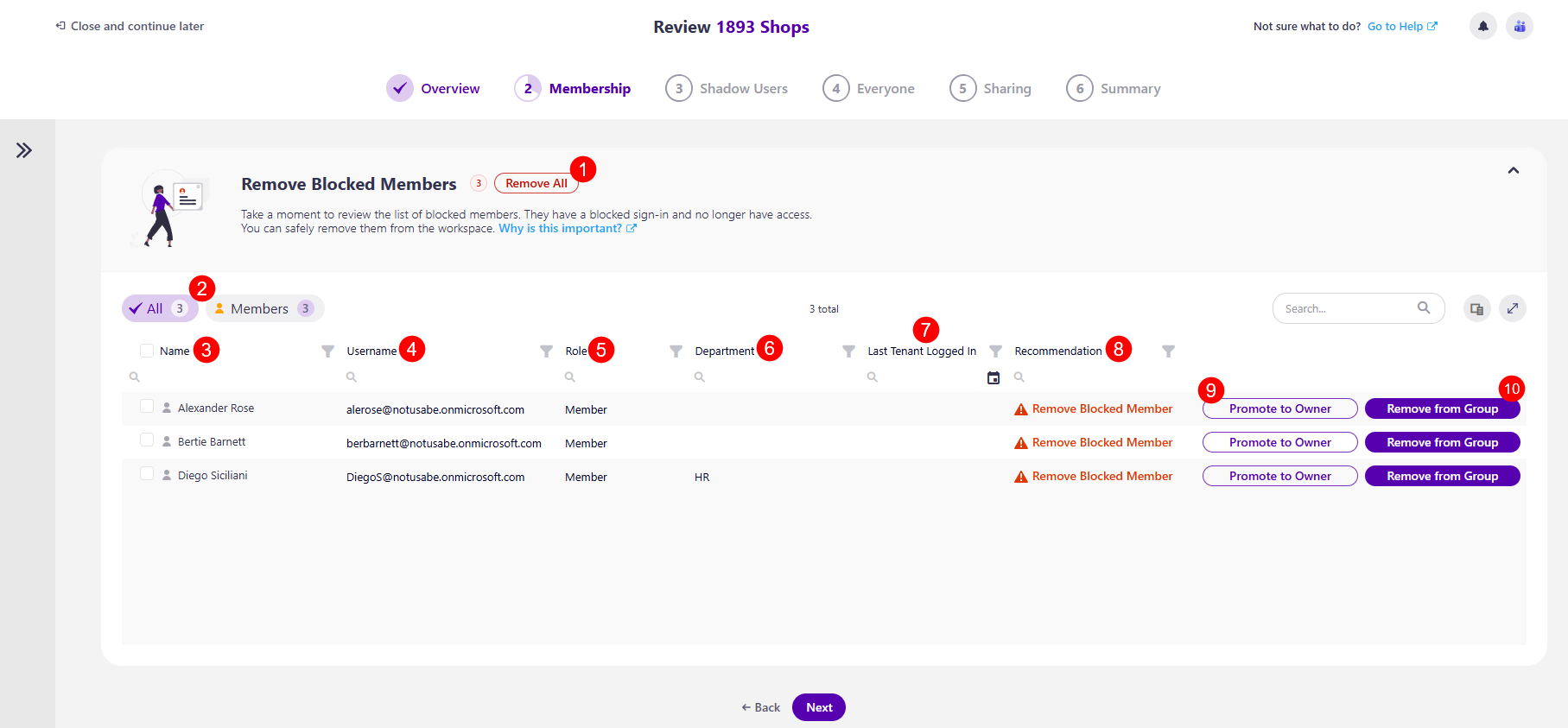
If the Blocked Members option was selected for this policy, after clicking the Review button, the Remove Blocked Members section opens, where the following can be found:
-
Remove All (1) action button next to the name of the workspace, which removes all blocked members in bulk
-
On the left side, there are three filters (2) you can use to view the list with:
- All users
- Owners only
- Members only
-
The columns available are:
- Name (3) - the name of the user
- Username (4) - the e-mail address of the user
- Role (5) - the role of the user in the workspace
- Department (7) - the department of the user
- Last Tenant Logged In (6) - last date the tenant with the user was logged in
- Recommendation (8) - this section provides a recommendation from Syskit Point on what actions should be taken if any notable recommendations can be made. The following recommendations could be suggested:
- Remove Blocked Members - a blocked member is someone whose sign-in access has been disabled by an admin. Blocked members cannot log in, and you can safely remove them from your workspace
-
Promote to Owner (9) action
- Clicking this action promotes the user from member status to owner status
-
Remove from Group (10) action
- Clicking this action removes the user from the workspace
Selecting more than one member lets you perform these two actions on multiple members at once.
Remove Inactive Guests
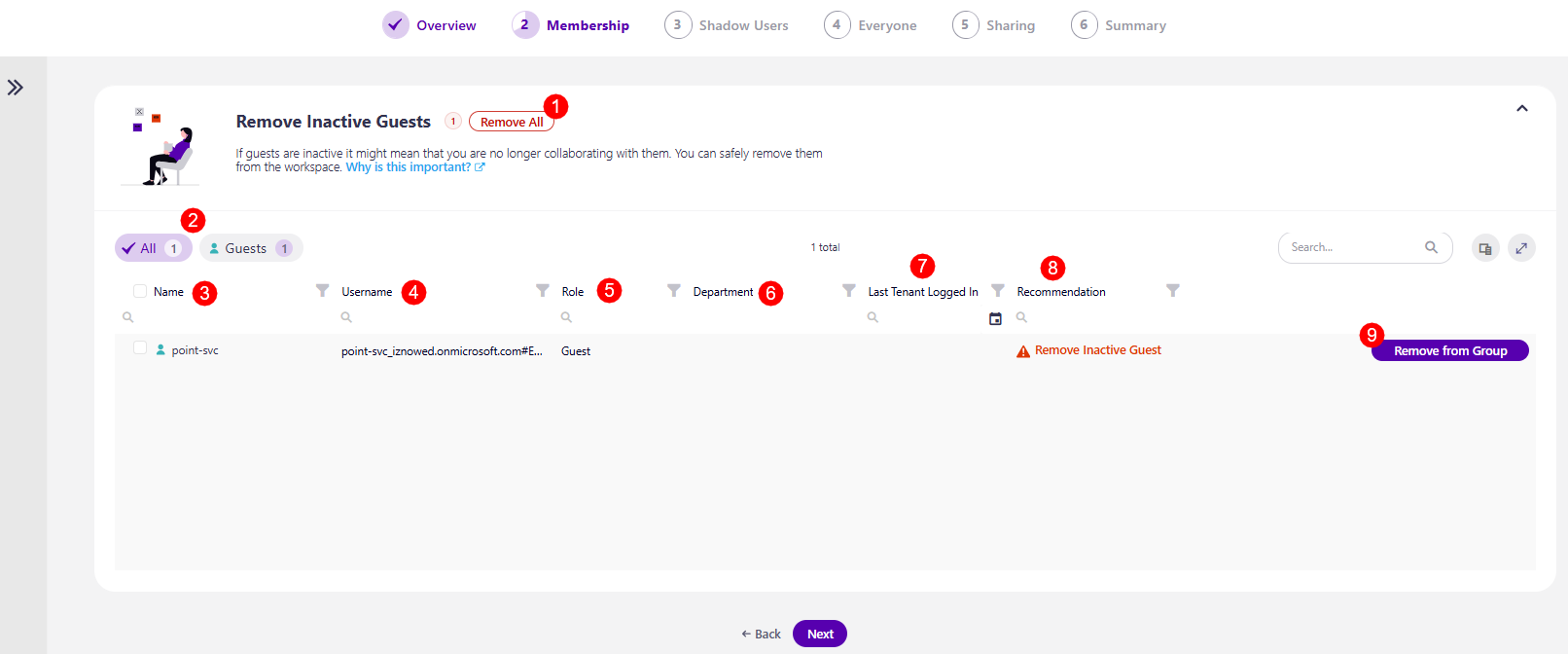
If the Inactive Guests option was selected for this policy, after clicking Next, the Remove Inactive Guests section opens, where the following can be found:
-
Remove All (1) action button next to the name of the workspace, which removes all inactive guests in bulk
-
On the left side, there are three filters (2) you can use to view the list with:
- All users
- Guests only
-
The columns available are:
- Name (3) - the name of the user
- Username (4) – the e-mail address of the user
- Role (5) - the role of the user in the workspace
- Department (6) - the department of the user
- Last Tenant Logged In (7) - last date the tenant with the user was logged in
- Recommendation (8) - this section provides a recommendation from Syskit Point on what actions should be taken if any notable recommendations can be made. The following recommendations could be suggested:
- Remove Inactive Guests - An inactive guest user is someone outside your organization who was inactive during the period defined in the Inactive Guest Users policy
-
Remove from Group (9) action
- Clicking this action removes the user from the workspace
Selecting more than one guests lets you perform these two actions on multiple guests at once.
Review All Members
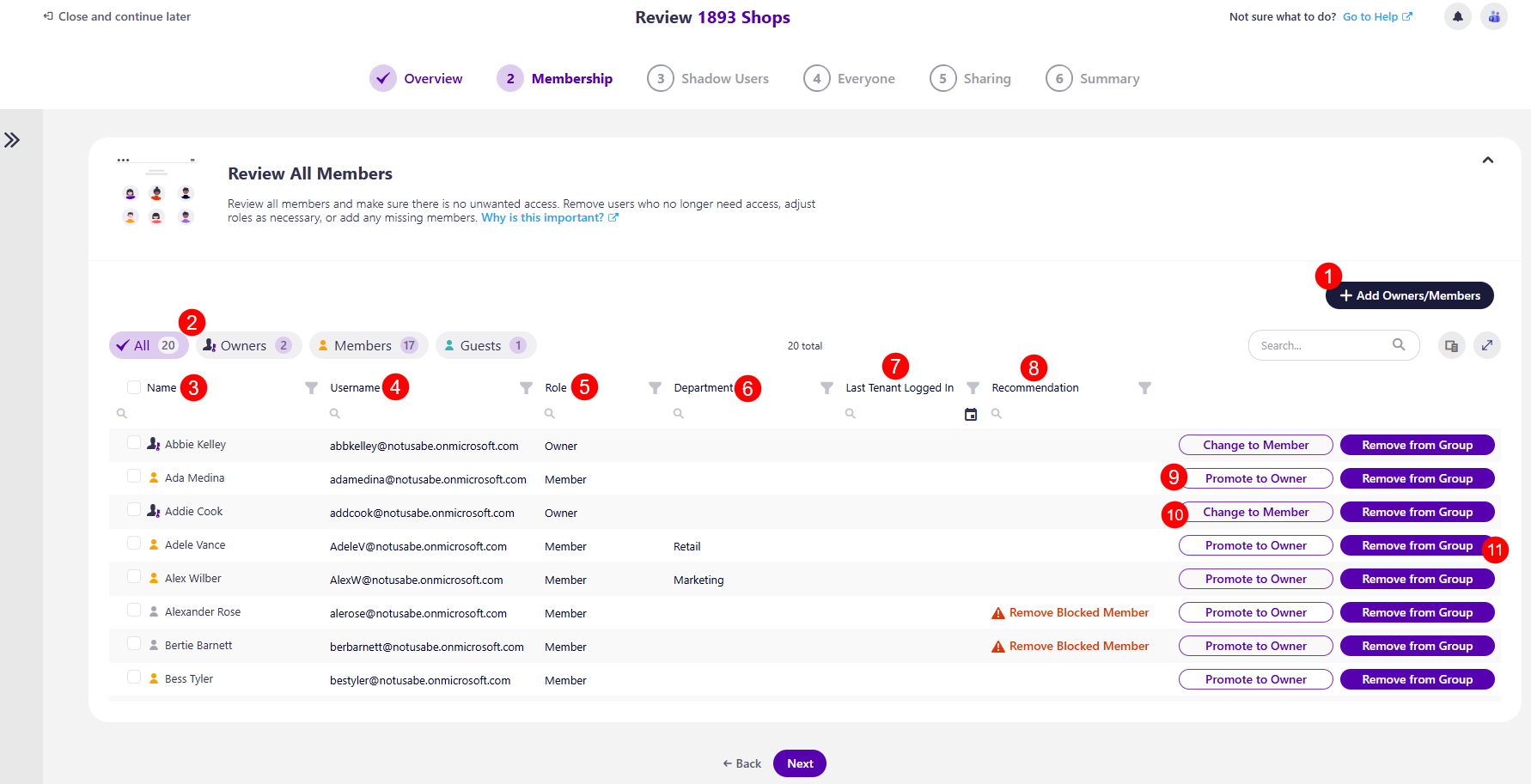
Clicking Next opens the Review All Members section. On this screen, the following information and actions are available:
-
At the top right corner, there is a Add Owners/Members button (1)
- Clicking this opens the Add Owners/Members dialog, where you can add additional members or owners to the workspace.
-
On the left side, there are three filters (2) you can use to view the list with:
- All users
- Owners only
- Members only
-
The columns available are:
- Name (3) - the name of the user
- Username (4) - the e-mail for the user
- Role (5) - the role of the user in the workspace
- Last Tenant Logged In (6) - last date the tenant with the user was logged in
- Department (7) - the department of the user
- Recommendation (8) - this section provides a recommendation from Syskit Point on what actions should be taken if any notable recommendations can be made. The following recommendations could be suggested:
- Remove Blocked Members - a blocked member is someone whose sign-in access has been disabled by an admin. Blocked members cannot log in, and you can safely remove them from your workspace.
- Remove Inactive Guests - An inactive guest user is someone outside your organization who was inactive during the period defined in the Inactive Guest Users policy.
-
Promote to Owner (9) action
- Clicking this action promotes the user from member status to owner status
-
Change to Member (10) action
- Clicking this action promotes the user from owner status to member status
-
Remove from Group (11) action
- Clicking this action removes the user from the workspace
Selecting more than one member lets you perform these two actions on multiple members at once
- If the Minimum Number of Owners and/or Maximum Number of Owners policies were assigned as part of the Workspace Review by the Administrator, and a vulnerability on the workspace was detected, you will not be able to move forward without resolving the vulnerability.
Once you have completed the actions you decide to take, clicking Next takes you to the next step, Shadow Users.
Please note!
If you are unsure of what to do at any point and want to consult your co-reviewers, you can start a chat with them by clicking the Microsoft Teams icon in the top right corner of the Syskit Point app.