Overview
The Security and Compliance Checks on your Syskit Point home screen highlight key vulnerabilities and misalignments with Microsoft 365 best practices. These checks keep you informed, helping you react quickly and maintain a secure environment.
Collecting all the important information about the security and compliance state of your environment is a time-consuming and repetitive administration task. Syskit Point performs regular security and compliance checks for you, and presents the results directly on your home screen.
Please note!
The Security and Compliance checks email is sent to Syskit Point admins weekly, on Wednesdays.
- If there are no vulnerabilities in your environment, no email is sent.
- If Wednesday is less than 2 days from your installation date, the email will be sent next week.
When you acquire SysKit Point, a default rule will automatically apply default governance policies to your workspaces.
- The default policies are configured to detect vulnerabilities without sending any emails or creating any tasks.
- All vulnerabilities detected by Syskit Point are displayed on the Security & Compliance Dashboard.
- Both the vulnerabilities detected by default policies, as well as the policies created by Syskit Point admins, are displayed on the Security & Compliance Dashboard.
Security & Compliance Dashboard
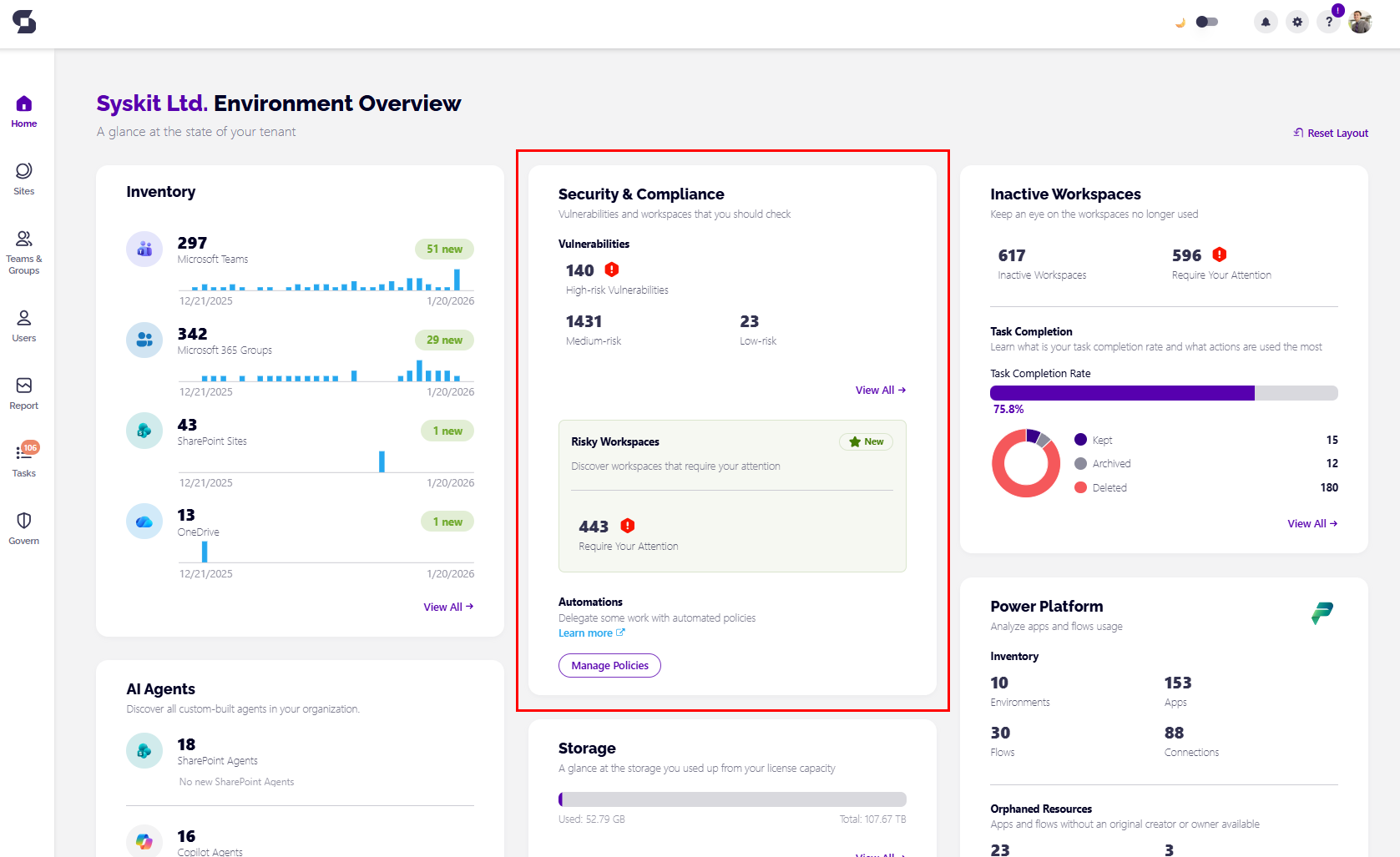
On the home Dashboard, you can click and drill down to a specific report to investigate further by clicking the View All button.
On your home screen, you can see the number of:
- High-risk vulnerabilities
- Medium-risk vulnerabilities
- Low-risk vulnerabilities
You are also able to apply policies manually or set up policy rules if you haven't already, by clicking the Manage Policies button.
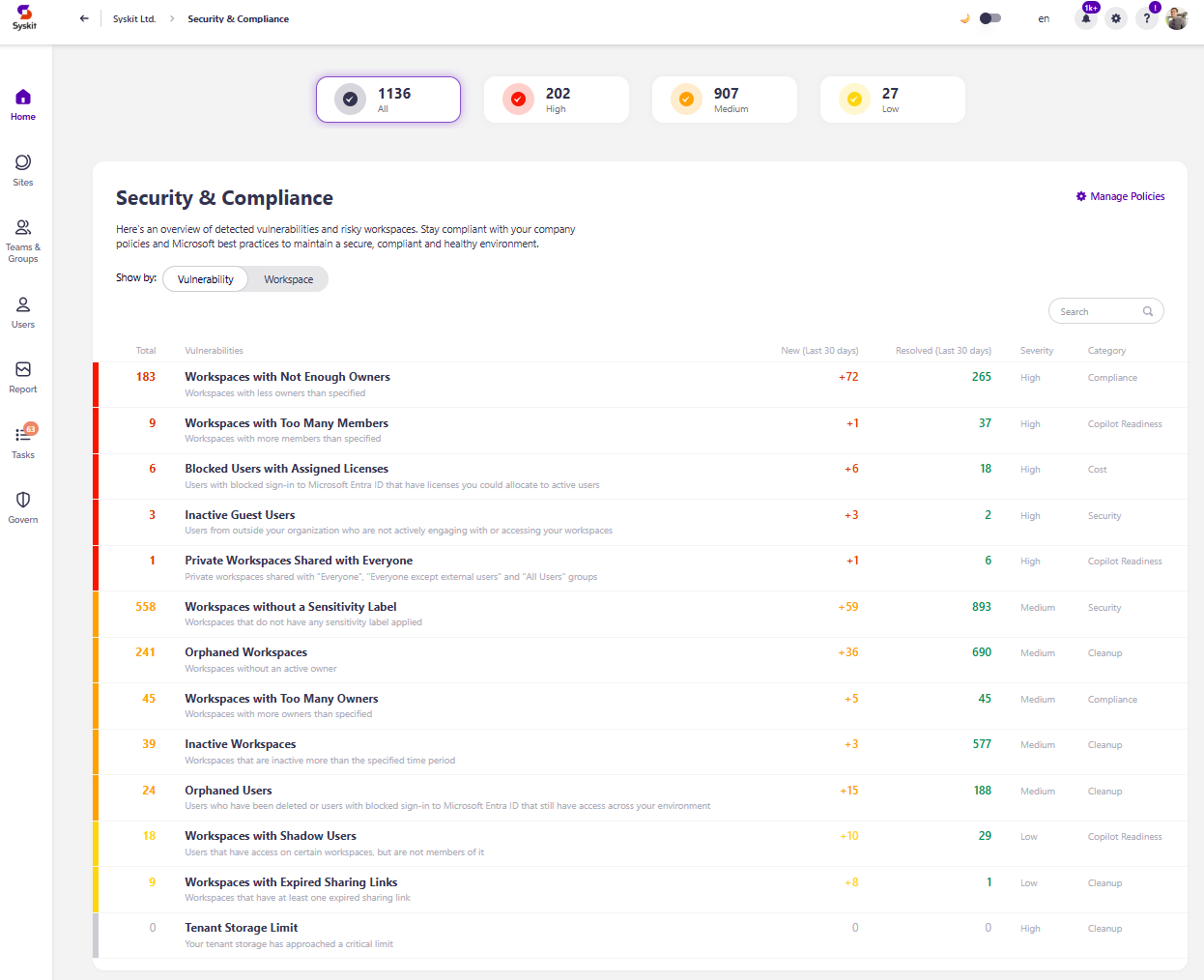
After clicking View All, the Security and Compliance checks dashboard will open, showing the following:
- Workspaces with Not Enough Owners – shows the number of workspaces that don't have enough owners. You will be able to investigate further and assign additional owners if needed. Keep an eye on workspaces with only 1 owner because if that one owner leaves, a workspace is left without an owner.
- Workspaces with Too Many Members – shows the number of workspaces with too many members. If there are too many members, it may be more difficult to control access and permissions, leading to security concerns. This helps you keep track of and manage groups with more members than your set limit.
- Blocked Users with Assigned Licenses - shows the number of users with one or more active licenses assigned that have been blocked, which helps you detect and remove licenses that are not being utilized.
- Inactive Guest Users - shows the number of guest users that have been inactive for a certain amount of time and helps you optimize your environment and keep it safe.
- Private Workspaces Shared with Everyone - shows the number of private workspaces shared with Everyone, Everyone except external users, or All Users security groups, which helps you detect and remove access on workspaces that pose a potential security risk.
- Workspaces without a Sensitivity Label - shows the number of workspaces without a sensitivity label assigned, which helps secure workspaces and ensure they are correctly categorized.
- Orphaned Workspaces - shows the number of workspaces without an active owner. It helps you manage your Microsoft 365 workspace's health and helps ensure there are no workspaces without owners in your tenant.
- Workspaces with Too Many Owners – shows the number of workspaces with too many owners. If there are too many owners, no one feels accountable for access and content management. This helps you keep track of and remove extra members.
- Inactive Workspaces - shows the number of workspaces that have been inactive longer than the specified time period, making it easier for you to decide when a workspace needs to be kept, archived, or deleted.
- Orphaned Users - shows the number of orphaned users and takes you to the Orphaned Users report, which helps detect and remove blocked or deleted users from your Microsoft 365 workspaces.
- Workspaces with Shadow Users – shows the number of workspaces with shadow users - users who have access to specific content on the SharePoint site but are not members of the Microsoft 365 Group or Team associated with it. Access granted to shadow users can be a security concern if you don't regularly monitor them. This helps you keep track of and remove access given to shadow users.
- Workspaces with Expired Sharing Links – shows the number of workspaces that contain at least one expired sharing link, which helps you keep your workspaces secure and ensure files can be accessed only by the necessary people.
- Tenant Storage Limit - shows whether you reached the tenant storage limit based on the percentage set for the policy.
You can choose to view the Security & Compliance screen by having it Shown by: Workspace. This opens the Risky Workspaces view.
For more details on this view, take a look at the Risky Workspaces article.
Automated Governance
To keep all vulnerabilities under control proactively and prevent possible issues, explore and set up governance policies and policy rules in Syskit Point.
Please note!
If a user, security group, or mail-enabled security group is added to the Governance-Excluded Users list, those users do not receive any Governance-related tasks or task-related emails. For more details on setting up Governance-Excluded Users, take a look at this article.
Navigate Security and Compliance Checks
Take a look at the following articles to learn how to settle your security and compliance checks:
- Risky Workspaces View
- Inactive Guest Users
- Blocked users with assigned licenses
- Orphaned workspaces
- Workspaces with not enough owners
- Orphaned users
- Workspaces with Expired Sharing Links
- Workspaces with too many owners
- Tenant Storage Limit
- Workspaces with too many members
- Workspaces with shadow users
Please note!
In case you have any security and compliance checks that need to be resolved, an email is automatically sent each Wednesday to Syskit Point admins. Click the Resolve button within the email to access the reports in Syskit Point directly and perform the needed actions.